Mark
August 22, 2025, 10:42am
1
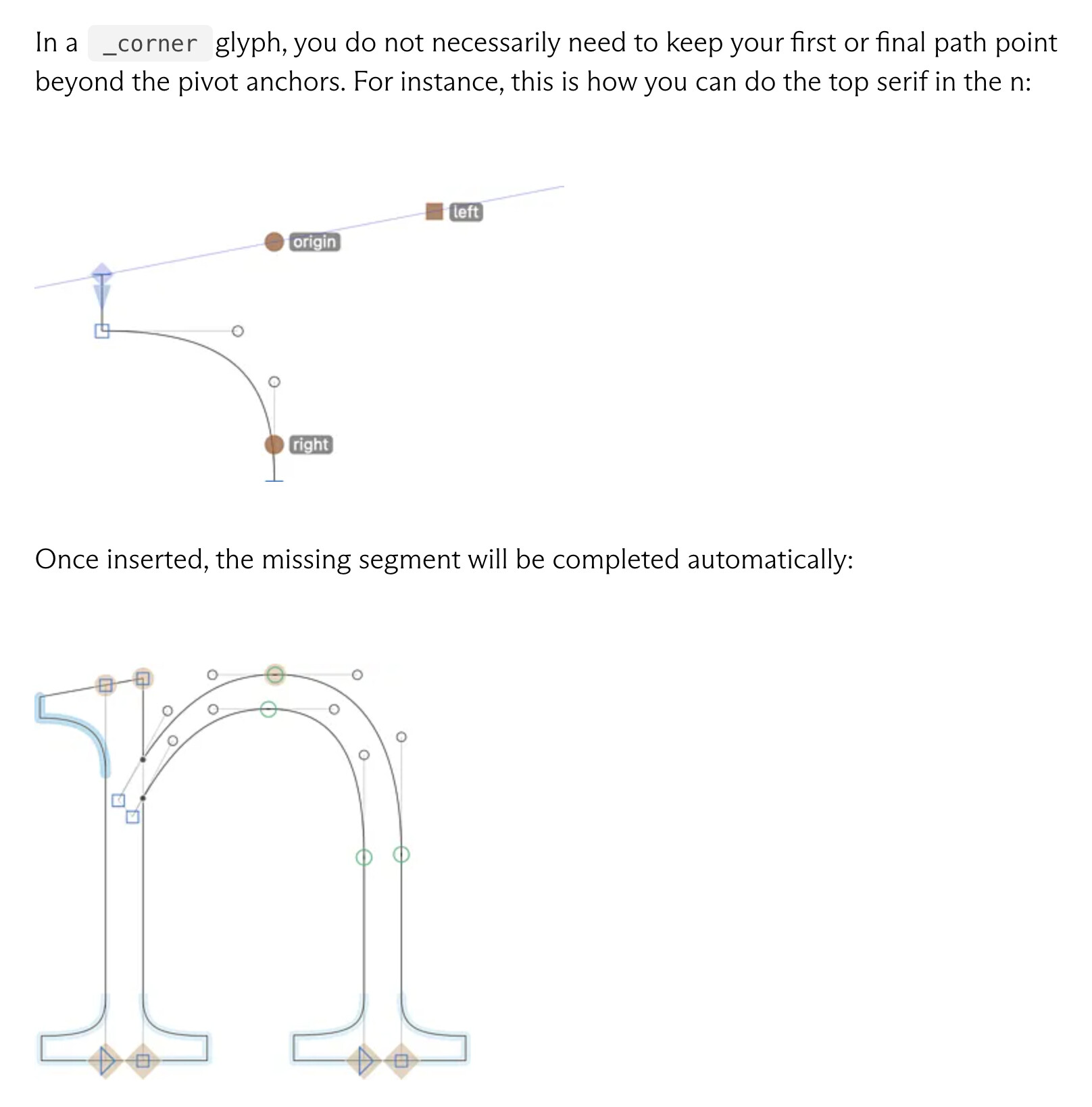
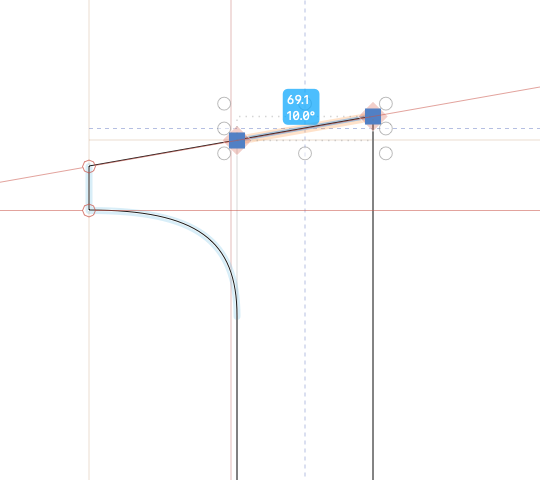
I just stumbled upon this setup in the tut:
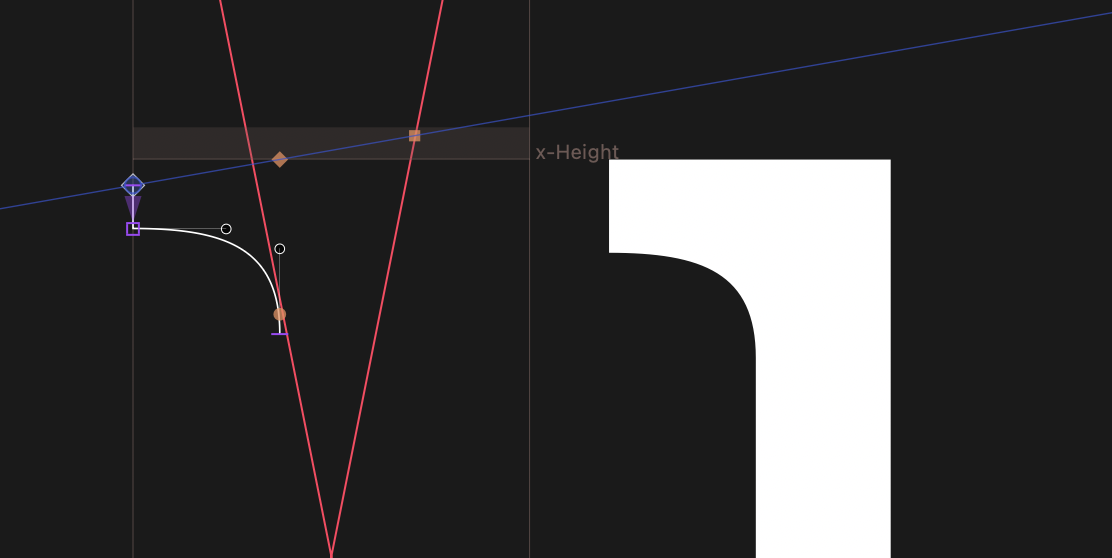
However, when I try it, I don’t get that result:
Either the serif is straight at the top:
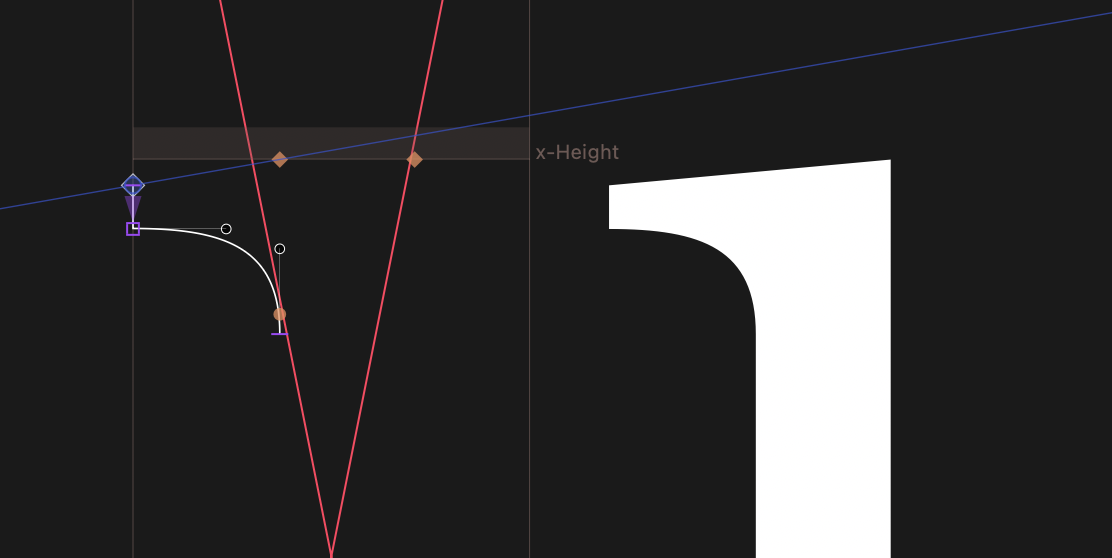
Or, when I move the “left” anchor down to sit on the same height as the “origin” anchor (only other way that would sound plausible to me), then I get the top angled, but not by the angle of my guideline, that I would target. I could get the angle I want, but only by trial and error, and then the “left” anchor sits in a vertical place that seems to make no sense:
Corner Serif.glyphs.zip (3.0 KB)
G 3424
etunni
August 22, 2025, 11:23am
2
Hi Mark!
Corner Serif_REPAIRED.glyphs (1.3 KB)
Make it a cap component as explained in the other thread.
Mark
August 22, 2025, 1:34pm
4
Sorry, but this is not me asking for a workaround, it is about that either
the tutorial is not correct, or
the Glyphs behavior is not correct
Either way, the Corner Component tutorial says:In a _corner glyph , you do not necessarily need to keep your first or final path point”
mekkablue
August 22, 2025, 2:59pm
5
The idea was to make it fit the receiving path. So add an angle in the two top points of the stem. This way you can control the angle.
The example in the tutorial works for me as advertised.
kokoshneta
August 22, 2025, 4:32pm
6
Mark Frömberg aka Mark2Mark:
However, when I try it, I don’t get that result.
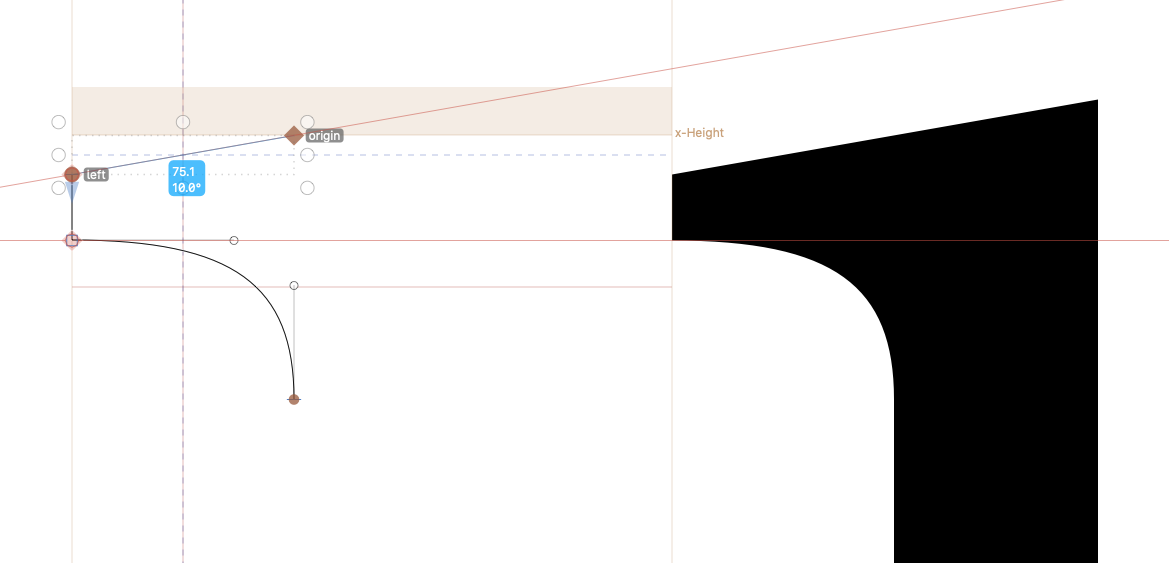
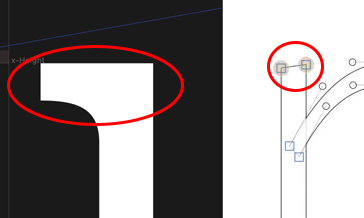
But your base n shape is different from the one in the tutorial. Yours has a flat top, while the one in the tutorial is angled:
If you angle the top of the base shape like in the tutorial, it works as shown.
1 Like
Mark
August 22, 2025, 4:41pm
7
Thanks. Yeah, now I see that too. Sorry.
Here a version of you serif as a cap. It can do much more and so I always would use a cap in this case.
Corner Serif_REPAIRED gs.glyphs (1.2 KB)
2 Likes
Mark
August 23, 2025, 8:06am
9
Thanks a lot. Again sorry for the confusion. Yes, with this feature of using intermediate layers with cap components, a whole new world opens up!
1 Like