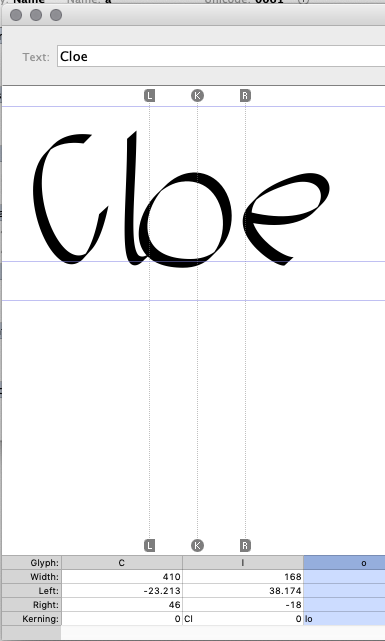
How can I change the metrics and kerning in the Edit window by dragging and moving. Like in Fontographer.
This is essential. I can’t design with numbers or pushing the buttons. In Fontographer this just worked fine.
How can I change the metrics and kerning in the Edit window by dragging and moving. Like in Fontographer.
This is essential. I can’t design with numbers or pushing the buttons. In Fontographer this just worked fine.
I found the plugin by Lucas de Groot. (“**Mouse Kerning and Spacing.”)
But you have to switch between Kerning and Metrics by clicking a small icon. Why not with Lines on the left or right for Metrics? And a centred line for Kerning ? Like in Fontographer. And if you switch to “Metrics” the Kerning WYSIWYG dissapears ? It is not so intiutive (yet?). Anyhow thanks a lot for that plugin.
By default, you don’t do it with the mouse in Glyphs, because you are in Text mode and have your hands on the keys already. There is a plugin in the plugin manager for mouse-kerning though. But try the shortcuts and you probably don’t want to go back. See the Spacing and Kerning tutorials for details.
Dear Mr Scheichelbauer,
thank you for your feedback. I will try out the shortcuts and am looking forward to a new habit.