I want to move this circle component behind the figures and apply a mask for a negative figure on a black background – how can I do this to a selection of glyphs?
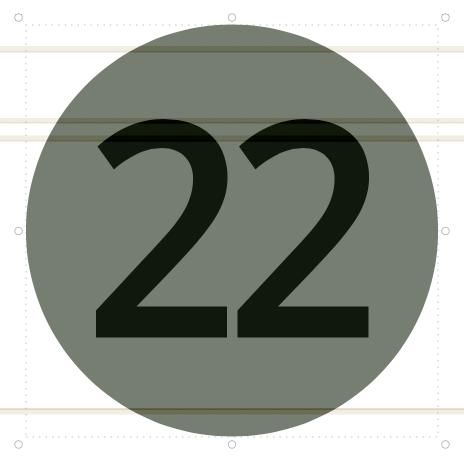
Set the number components to “Reverse”. Use the Shape Order filter to set the component order.
1 Like
I have got exactly the same problem yesterday. I solved it by reordering the shape.
Shape order menu.
But that can break your anchor auto alignment, especially if they are aligned to the center.
Thanks Sebastian – is there a way to apply this to my three masters across figures 01–99?
A good chalenge for the Glyphs MCP server.
The prompt can be :
Set the “inverse” option on the second component for every selected glyph in every master. Do this one glyph at a time.
Or more specific 
Set the “inverse” option on the second component for every glyphs from zero.blackCircled to [yourMax].blackCircled glyph in every master. Do this one glyph at a time.
replace your [yourMax].
Interesting approach
I’m hoping to go from the black circles below to the same style as figs 16–18 above in a single click, specifically applying ‘Reverse’ to multiple glyphs – I’ve used Shape Order to arrange the components – maybe there’s a script?
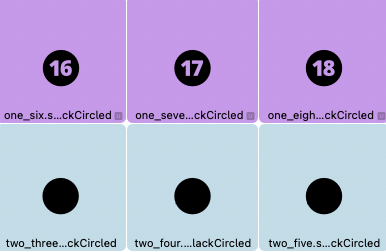
The numbers need to be above (index 2, below in the Shape Order) for the Reverse to work.
There is no way to do that in one click. The easiest would be a script or with an AI prompt as Thierry had suggested.
Thanks both – I just found the MCP Server post from a few days ago
If you already have your compmonent order set up correctly, select the glyphs you want to apply this to and run this:
for s in Font.selectedLayers:
	g = s.parent
	for l in g.layers:
		if not l.isSpecialLayer and not l.isMasterLayer:
			continue
		for i, c in enumerate(l.components):  # can't use l.components[1:] here
			if i == 0:
				continue
			c.attributes["reversePaths"] = True
			c.attributes["mask"] = False
This saves about a litre of water.
1 Like
This worked a treat. Much appreciated!