Hi everyone! My first post to the forum, very exciting! I’m working on a script typeface with very thin (4pt thickness) curves curling around each other, overlapping at times. However when they overlap, something strange happens and one curve morphs the other one. I heard that I could solve this by turning off the grid, which I don’t think is a great idea, or to do it in post production. But I was wondering if anyone knows of another way? Many thanks in advance! I’ll add a picture as an example!
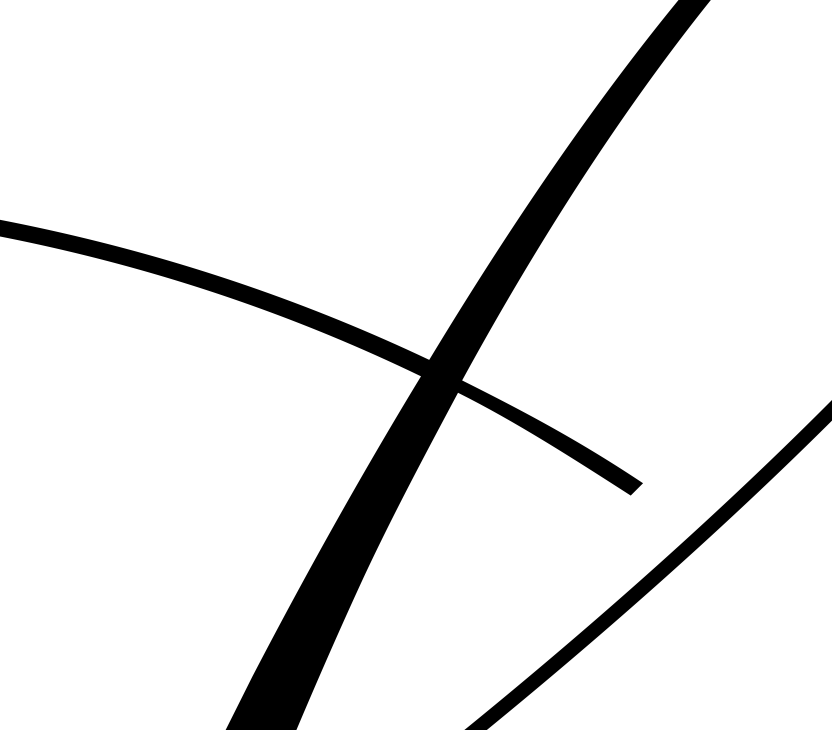
On export, the overlaps of the shapes are removed and the new points are rounded to the grid. You have four options:
- Increase the resolution: Use more units per em. You can scale up the whole font (in Font Info > Font (the button next to the Units per Em field). Try 2000 or 3000. Bigger values will begin to produce problems.
- Scale the font on export: Add a “Scale to UPM” parameter in the instances.
- Use a smaller grid. That can work for PostScrip/CFF based fonts. Not for TrueType or Variable fonts. Set the grid subdivision to something like 10. That will make the rounding change the curve less.
- or just ignore it. In most cases, nobody will notice.
This is because Glyphs shows you the outlines like they would be in the final font, with overlap removed. There’s a hidden app preference somewhere to disable this, I think…
Just ignore it. You have to be zoomed in pretty far for it to make a difference.
This is true for text fonts or fonts with generally strokes that are above a certain amount in relation to UPM. Script fonts like the one above live from being seen at huge sizes, so this is in no way negligible.
Increasing the UPM would be my first choice, like Georg pointed out.
Yes, but they also live from being able to see the word you write with it. Zoomed in that far, you won’t even have a single letter in your field of view.