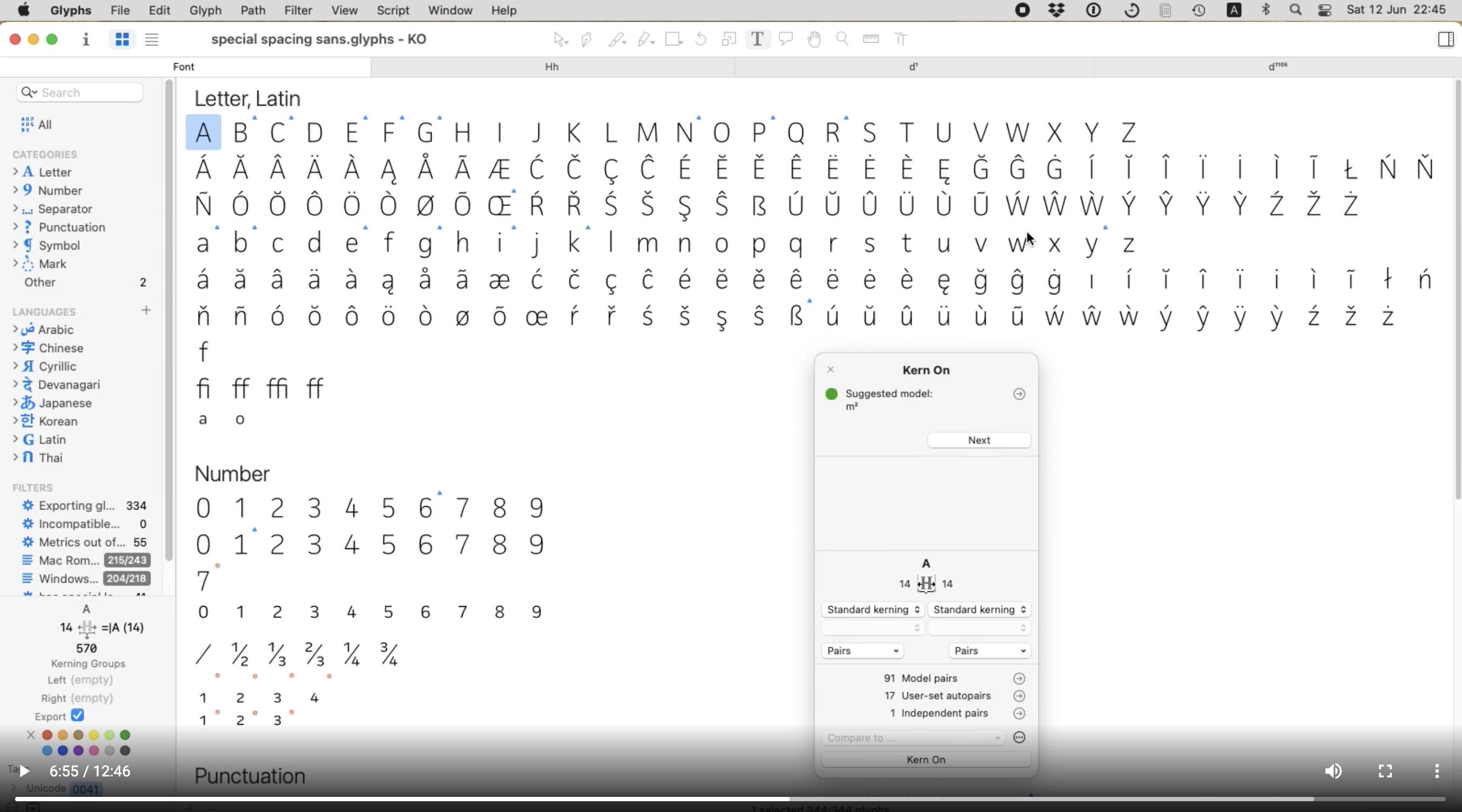
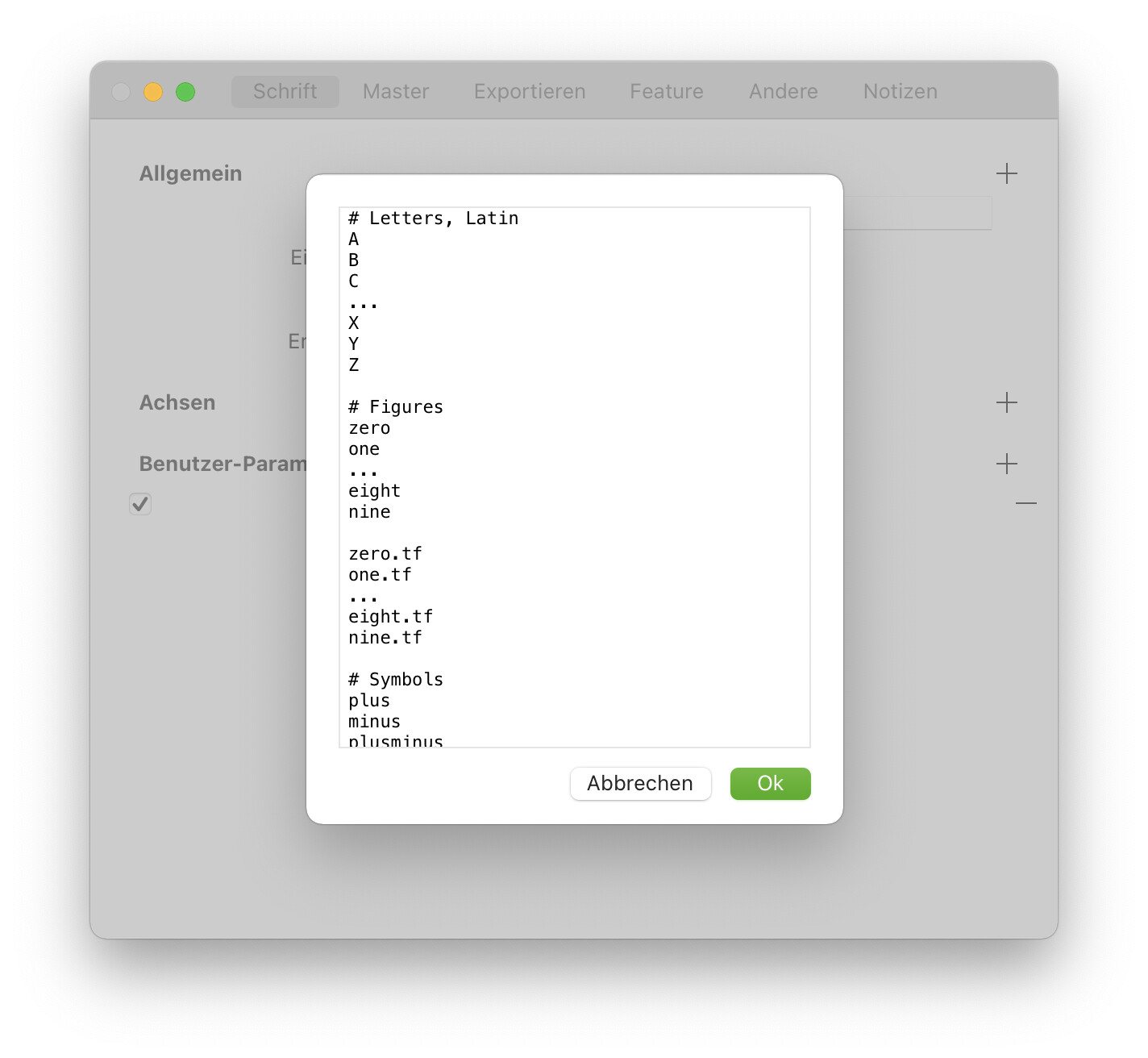
In this screenshot, the GlyphOder in Font View is changed and I would like to know how it’s possible to add a line break after a specific Glyph (For example here, after the “Z” Uppercase )
Also, my intention was not to add a line break, this is what Glyphs 3 (but not Glyphs 2) adds. I simply want to have the plain letters first and then the accented ones.
@GeorgSeifert It would be much better if this was simply a built-in option in Glyphs. I am pretty sure most designers don’t want plain and accented letters to be jumbled.
I personally don’t mind the line break. What matters to me is the order. We have had this discussion several times for many years – I believe sorting is much more powerful than filtering. Why not let users choose whether they work with sorting, with filtering, or both?
I was already using this trick on Glyph2, but Glyph2 doesn’t add “line-break” where Glyph 3 seems to add some.
An option to add manually a line break after a specific Glyph could help to see more clearly when working with a large glyph set.
For the moment the only option I found to do that is to change SortName or Sub-Category to do that (but change Sub-Category is not a really good option)
For me, the most important specific thing would be to keep the plain letters next to each other. Thinking about it, it would be good to have all non-composite glyphs first, then all composites (to be precise, the hybrid ones could go in-between). For each subcategory independently. Then I’d be quite happy already.
More generally speaking, we have three aspects to handle a glyph set:
Colour
Order (sorting)
Filtering
Each of these has its own benefits, of course. I think colour + order is already extremely powerful if done well.
How about adding the possibility to apply a filter as sorting criterion? Let’s say, if I option-click a filter then Glyphs would not hide the non-matching glyphs but simply put them after the matching ones (per category or sub-category, I suppose). No cluttered UI and it would be quite powerful (and I guess I wouldn’t even use filters normally any more).
Or, alternatively, temporarily colour the glyphs according to the filter if I click on it with a modifier key? Without hiding them, without changing the order, just colouring them, possibly disabling them so they can’t be selected, that could be very powerful.
The problem with the current solution, i.e. setting sortName in the GlyphData.xml is that you have to keep the other information a well, and it could become outdated. This is why my GlyphData.xml for Glyphs 2 does not work in Glyphs 3 any more. We are breaking the Don’t Repeat Yourself rule.
If it was possible to set something like this: <glyph name="A" sortName="0_A"/>
in order to only overwrite the sortName for the A, and keep all the other information, that would be perfect.
If you are using TextMate, I can send send you a script to insert the glyph element from the original GlyphData.xml into your custom GlyphData.xml by name:
Looks interesting but the main problem, as I was trying to describe, is that my GlyphData.xml is not updated in case the built-in one in Glyphs.app changes. So, it will have outdated information in it, because I have to specify information I don’t want to specify.
I’ll have a look at the custom data loading that you can only specify the values that you like to change. That way, it is less likely that you have old info in your file.