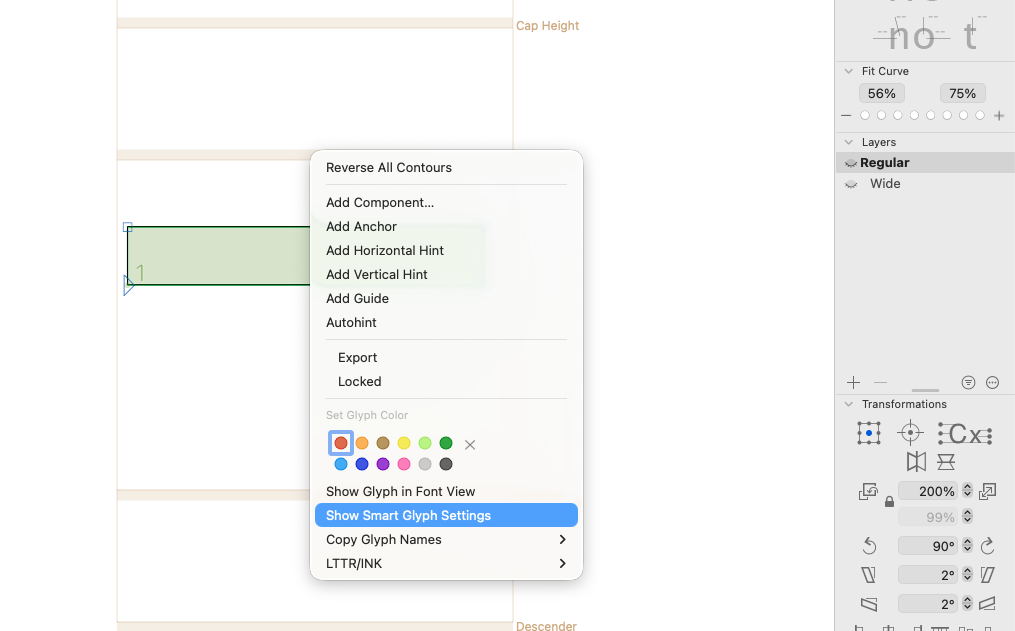
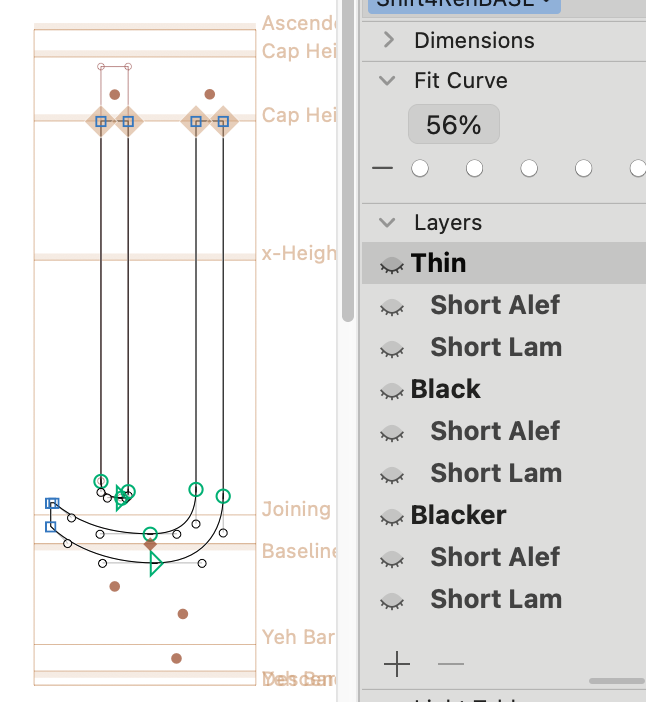
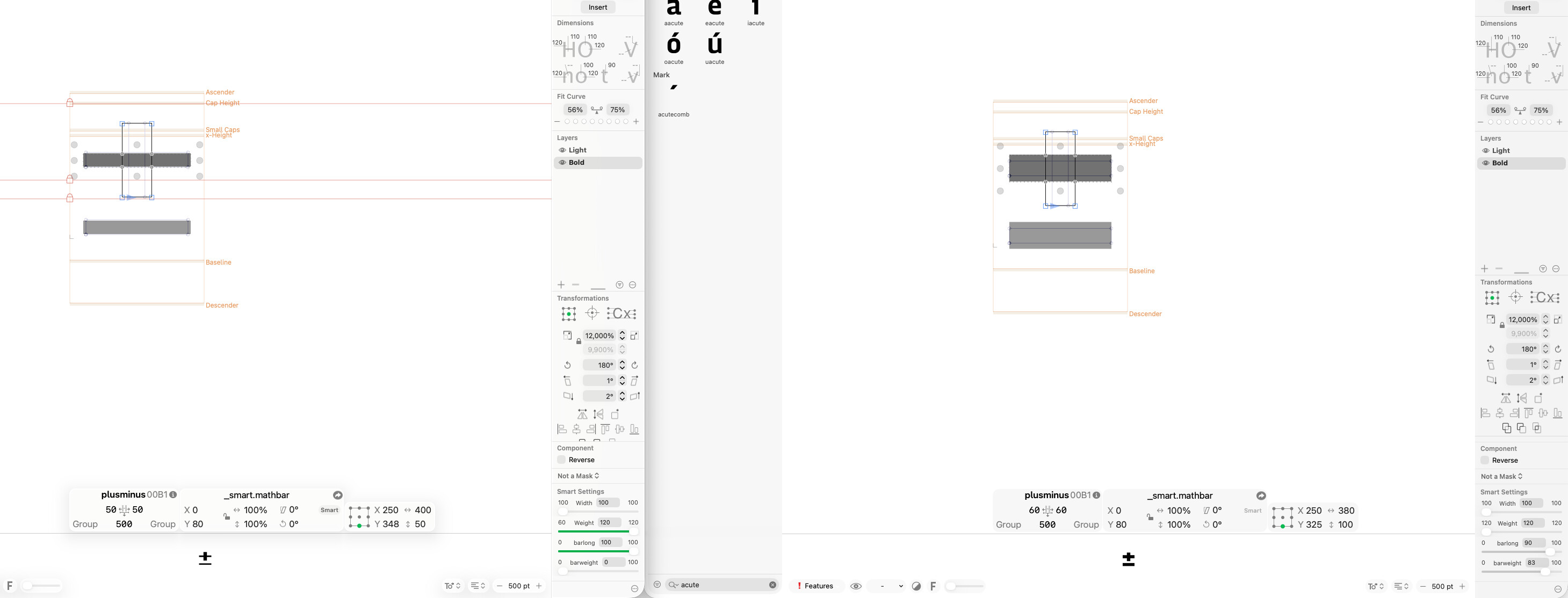
Hi :), Is there something special I should to to use Smart Glyph Setting? I can not find the option in G4.
G4 (3871)
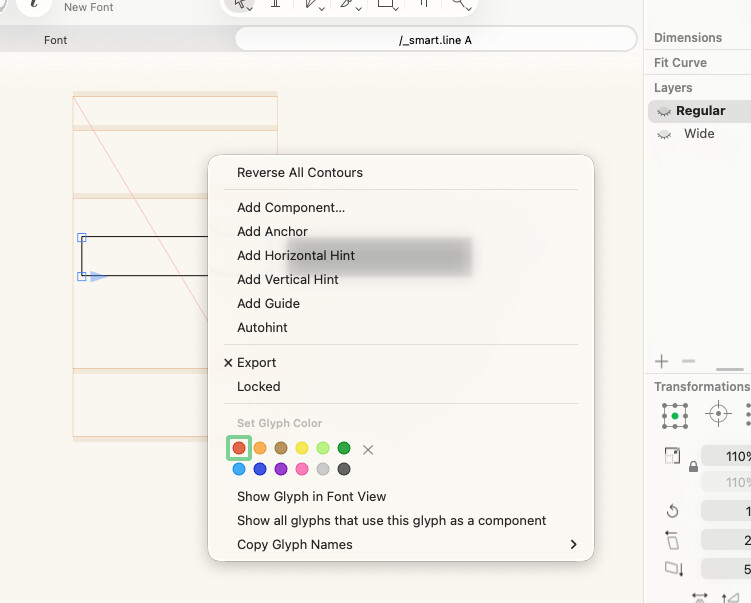
G3 (3530)
Hi :), Is there something special I should to to use Smart Glyph Setting? I can not find the option in G4.
G4 (3871)
G3 (3530)
This is now in the Variation sidebar (open the left sidebar using the button in the toolbar → third tab “Variation”). Instead of creating regular layers and assigning them top/bottom values like in the old dialog, use Intermediate layers.
Are there any plans to fill in the newly-required additional axis info when opening a file from Glyphs 3?
For example, I have a font with a weight axis and 2 custom axes. This smart glyph lives on the default for the two custom so has only layers for the weights + its own smart layers:
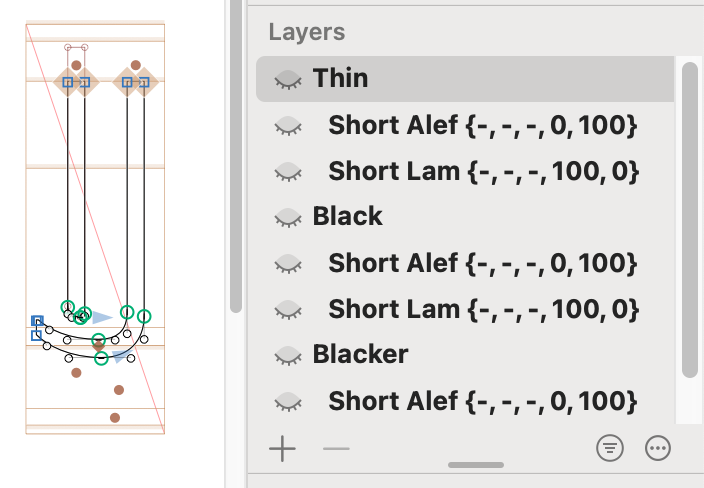
Ideally that same glyph in Glyphs 4, knowing from the G3 file the weight it should be associated with AND that it should be at the default axis value for the other two since there are no bracket layers, would get that information auto-updated when opening in G4. Right now I get many empty entries:
Which causes compiler errors (fair). Am hesitant to split this work file into a G3 and G4 version because it’s quite complex, but it will eventually need to be exported from G4 to take advantage of the marks interpolation along variable axes that G4 provides. It would be very nice if this info could be auto-updated when opening G3 files to minimize additional manual work when porting over.
not all values are needed and the not set values are internally set to the “default” value of the axis. Click the “i” button that shows up when you hover over the axis in the left sidebar.
But please send me the file for testing.
Getting used to the Smart Components and the sidebar. I really like the way of adding an axis and previewing using the sliders in the sidebar.
What is really great now is that we can set an axis default value that isn’t the extremes (which I don’t think was possible in G3?) then have extremes in the Intermediate layers!
However, with the Intermediate layers there are a few comments:
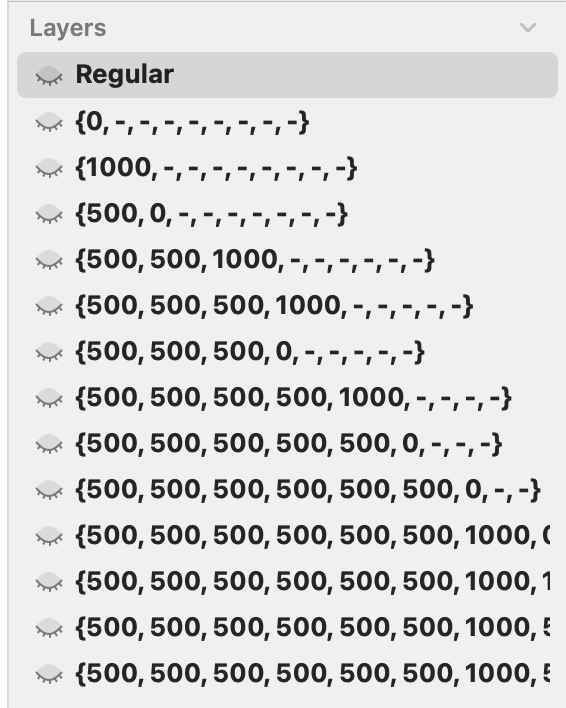
• the visual of seeing all values in the { } brackets gives me some sort of anxiety. It doesn’t make it easy to read/manage/debug…with one wrong click or typed value it can easily throw everything off
• there was something nice about being able to tick a checkbox to set it as Minimum or Maximum (since we can now do different default values it could nice to also set a Middle value or Other )
• sometimes things seem to work when you don’t explicitly fill in the default values when creating a new intermediate but then other times it seems like it needs to be filled to work
• there are some selection issue…as in where you click a layer but the selection might bounce to the main layer so then you end up accidentally adjusting the wrong layer
• the red box ? at the corner is also confusion because it makes it seem like there is some error
• noticing that when i make copies of a smart component and then adjust slider in one glyph that it also adjusts in a separate glyph that shares the same axes
• Importantly, when a smart component gets added/set in another glyph then sliders in the right sidebar (it now seems perhaps unnecessary to have the sliders in the bottom right sidebar…instead of the new left sidebar?) but the sliders do not work there! Then if the sliders in the smart component glyph get adjusted then component that was set breaks!
Edit: After saving and closing and reopening the file…the default values of the axes were reset to 0
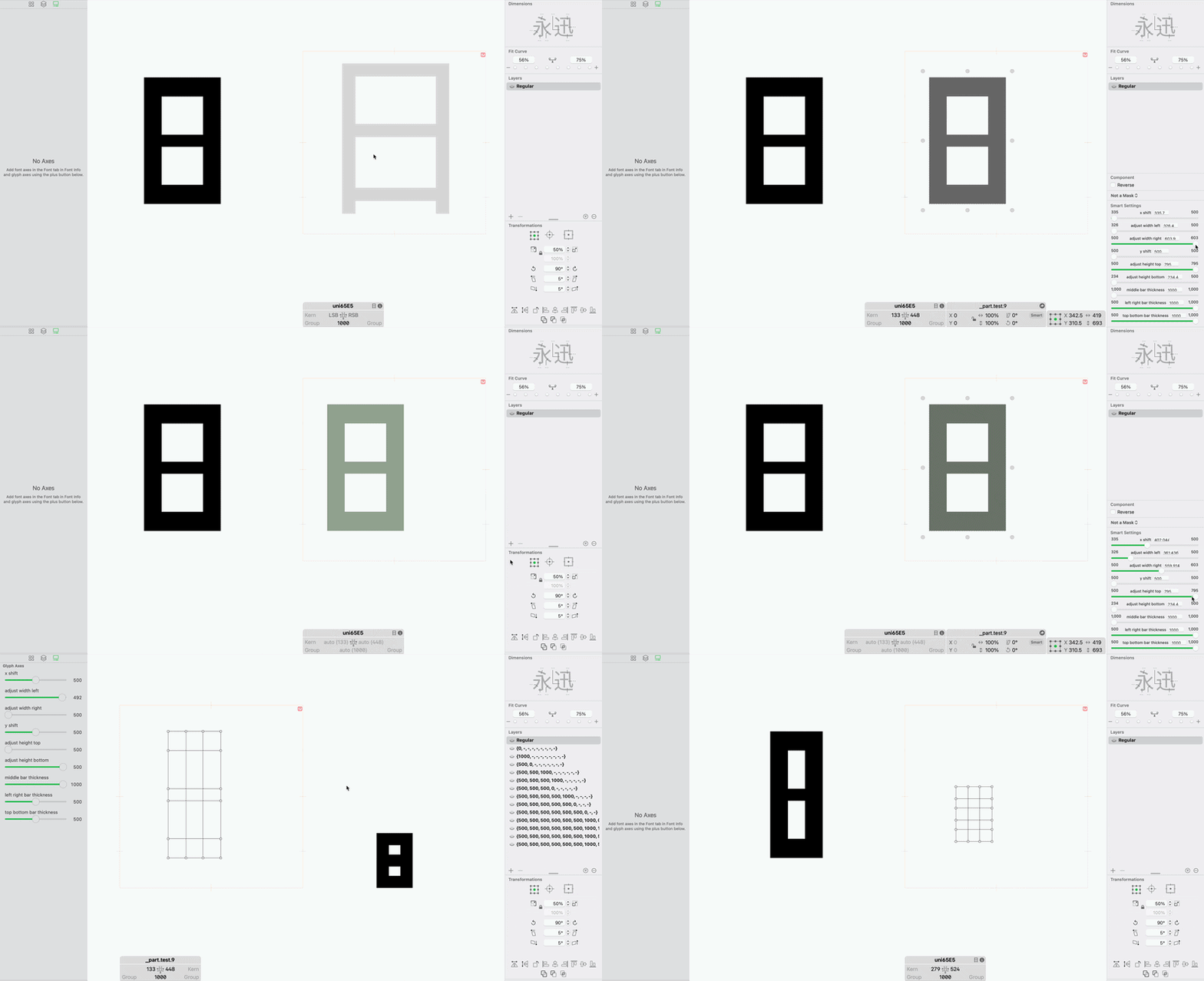
We thought long the disadvantage of removing the top/bottom checkboxes. But the advantages of the flexibility of the new system outweighs it. We plan to add a “layer manager” that helps with the setup and upkeep. Will come soon …
Whenever you find a problem with a setup where you think it should work and it doesn’t, send me the file.
And see what Window > Master Overview tells you about your setup.
Will wait for the Layer Manager.
Sent you a file highlighting the strange behavior of a placed Smart Component.
Haven’t yet figured out how to read and work the Master Overview.
Also, now I see if you hover over the red ? just right…it says “This glyph can’t be edited” which is what I figured since it is a preview of the interpolation but I think the color/icon could be different to make that clearer to make it feel less of an issue, more of a notice.
I cannot reproduce this. Is this still happening for you? If so, could you describe in more details which glyph/component is the one being copied?
Don’t notice it happening anymore. I think it may have got fixed in 4.0a (3874).