trying the smart component thing for the 1st time
after creating the _smart component I can’t find the context window
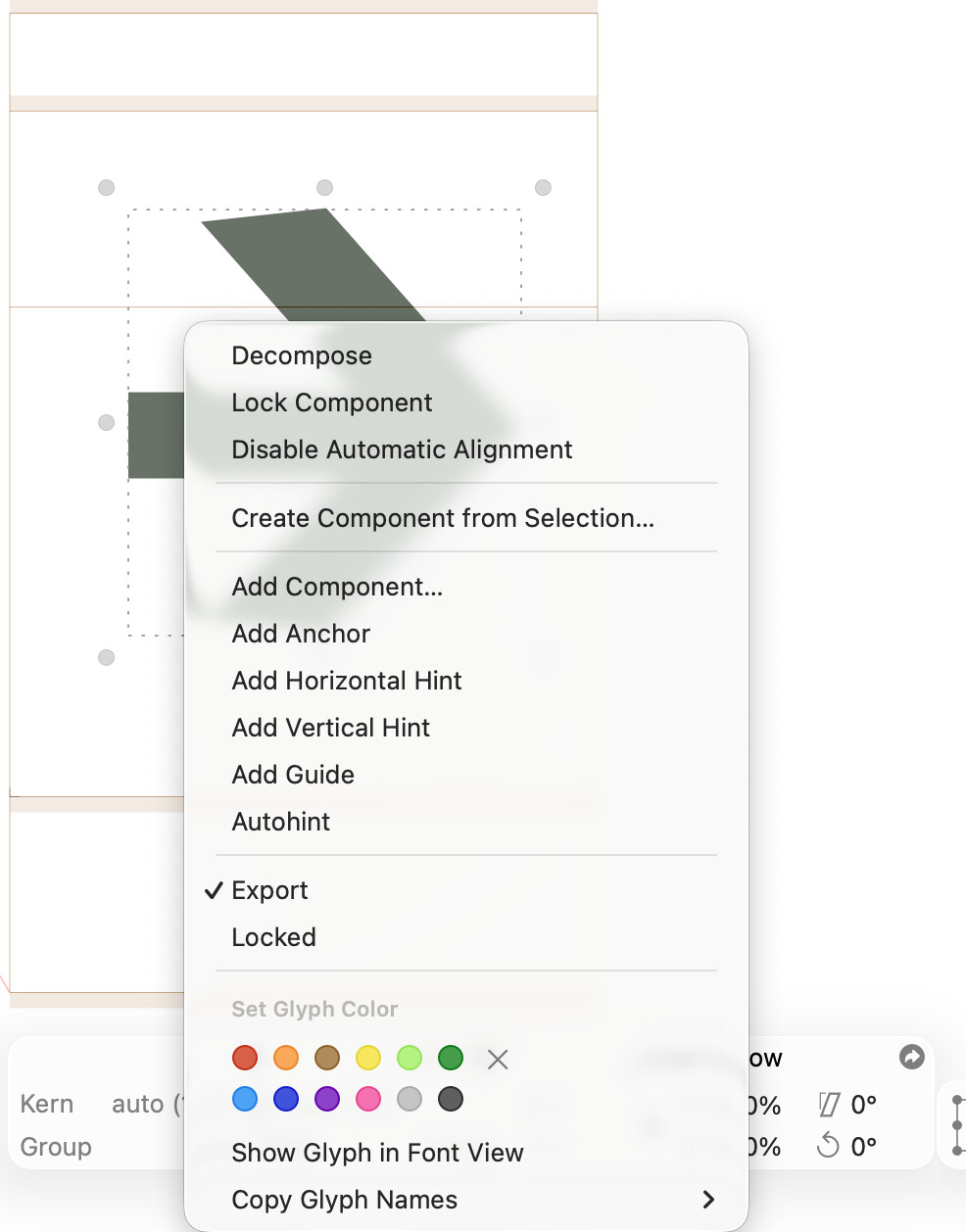
right click is not showing the option
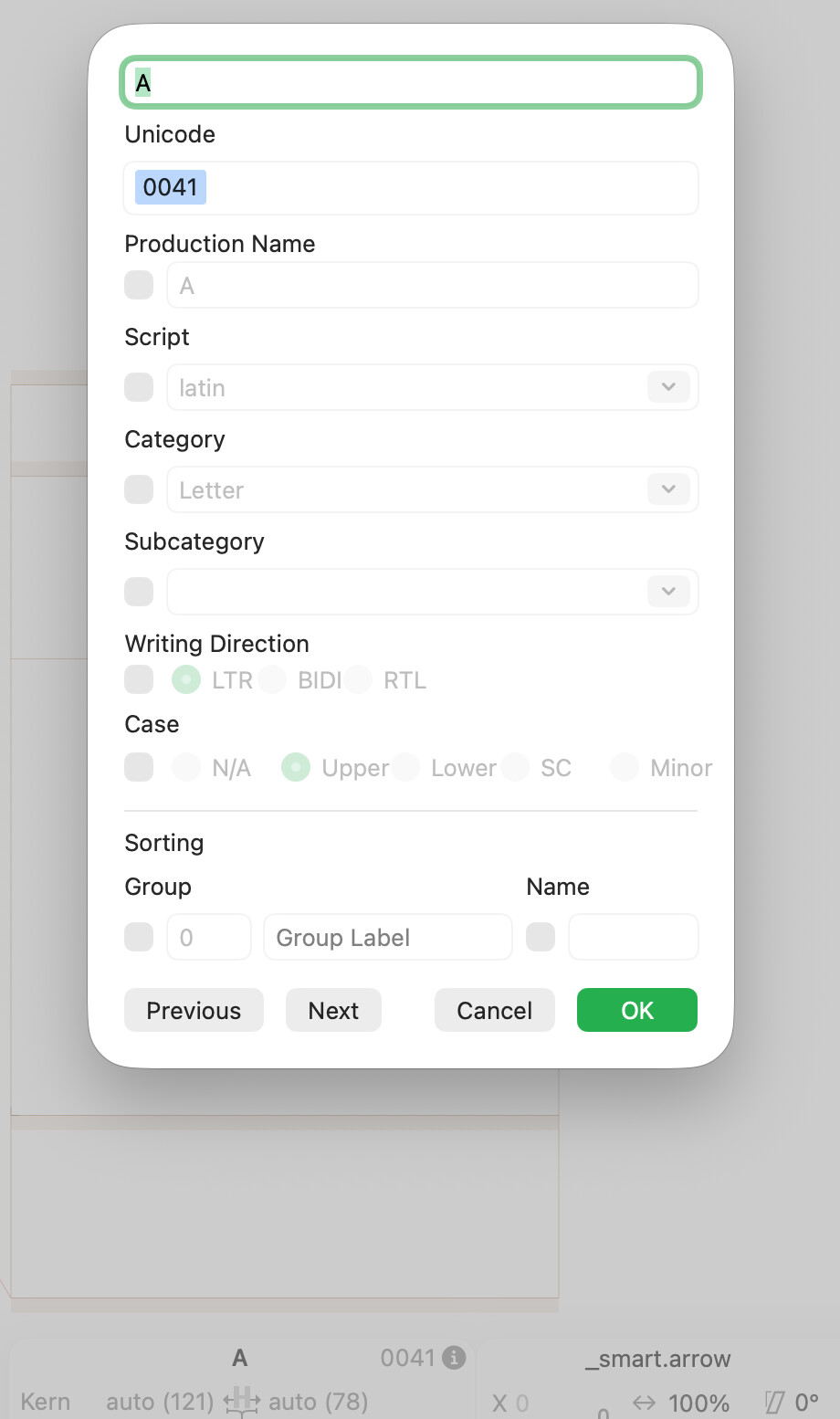
and the option+command+I brings the unicode window
In Glyphs 4, this has moved to the Axes sidebar (third tab of the left sidebar). There, add glyph-local axes (what used to be smart properties) with the plus button located in the bottom left of the window. Then, add Intermediate layers to define variations for those axes.
1 Like
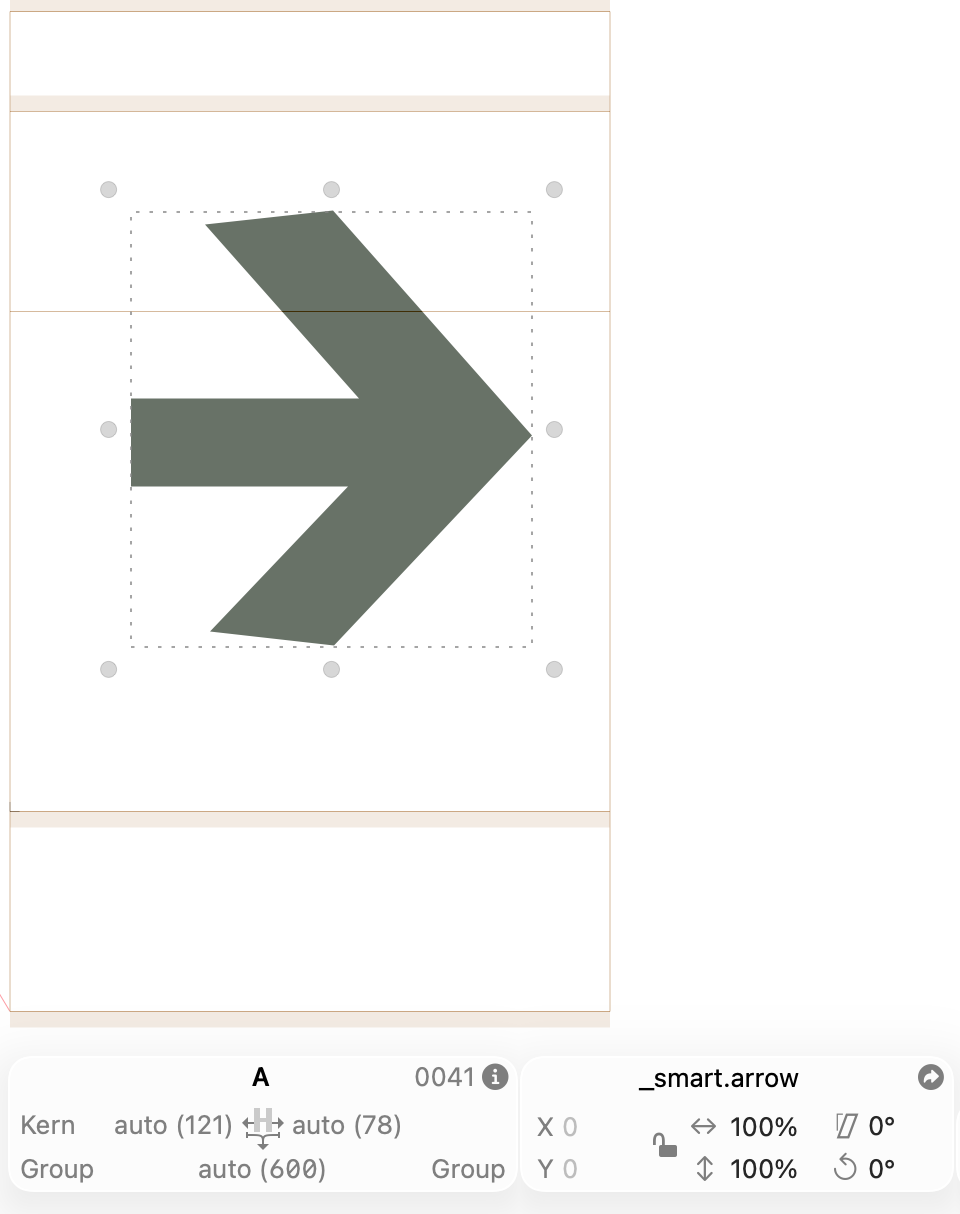
You need to define the axes in the _smart glyph, not in the A. If you have done that, you need to select the “_smart” component in the “A” and you can get to the sliders in three ways: in the right sidebar, by pressing Cmd+Opt+i or pressing the “smart” buttin in the info box.
1 Like
I found the slider in the right side bar but the other options elude me.
Cmd+Opt+I brings what I assume you call the info box (see attachment)
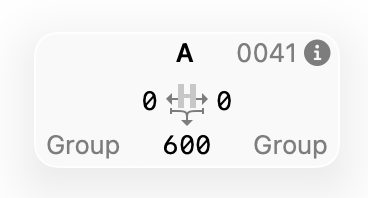
I can’t find the ‘smart’ button in what I assume is the info box (I don’t know 100% what you mean by info box, all boxes in a software have some kind of info! 
Info boxes are the little gray rectangles at the bottom of Edit View. For example, the glyph Info box with the glyph name and metrics or the component Info box with the component name and its position, scale, rotation, and skew.
The glyph properties window in your screenshot is shown for Info for Selection (⇧⌘I) when nothing more specific is selected. When you select a smart component, Info for Selection brings up a window with sliders for that component.