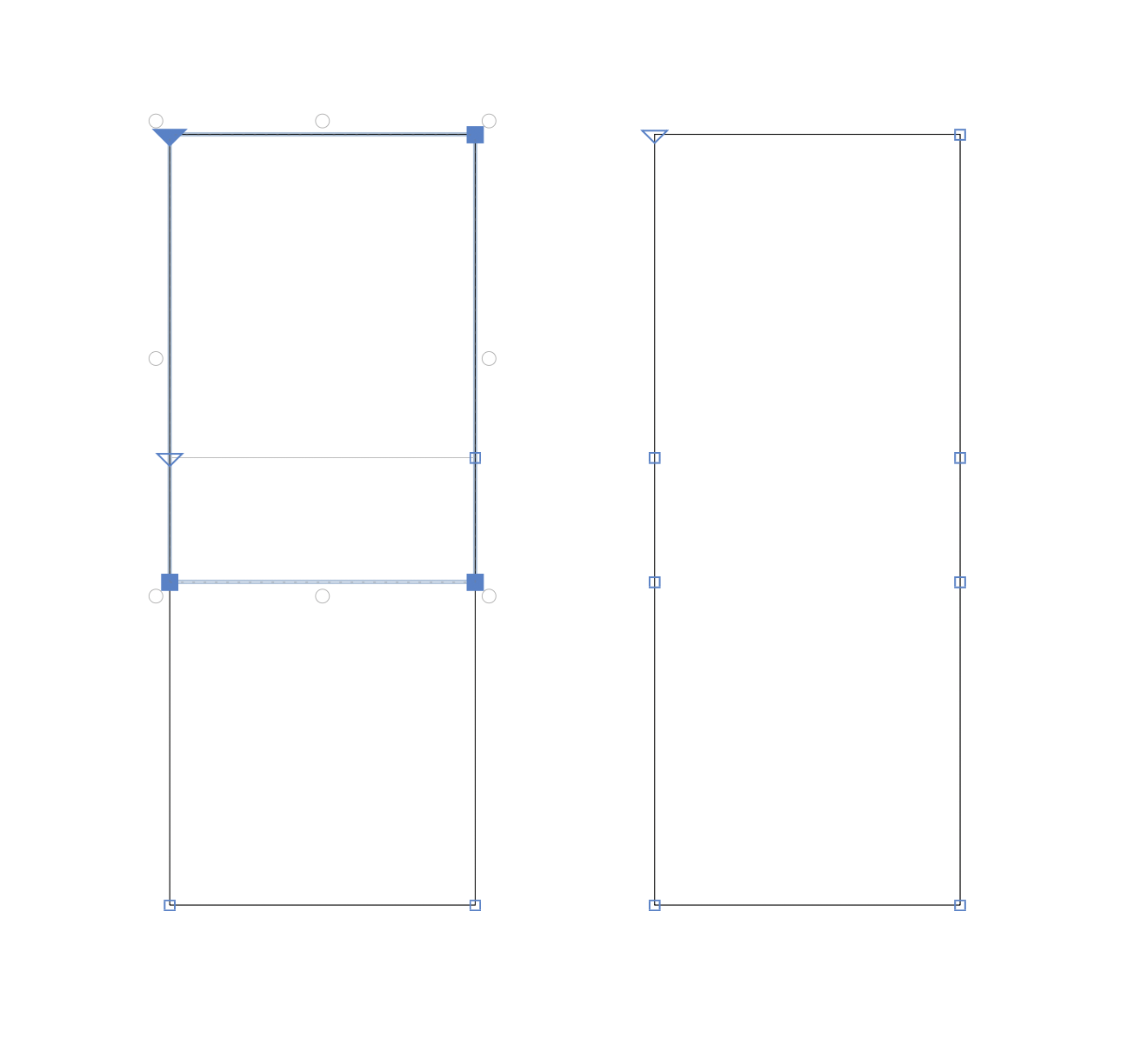
When did this change? Remove Overlap command. Or did I dream that these unnecessary nodes were removed?
1 Like
If you do it manually, best to do it in two stops: remove overlap, tidy up paths.
1 Like
What would be the most efficient way to fix this on export?
If I have this and export with remove overlap:
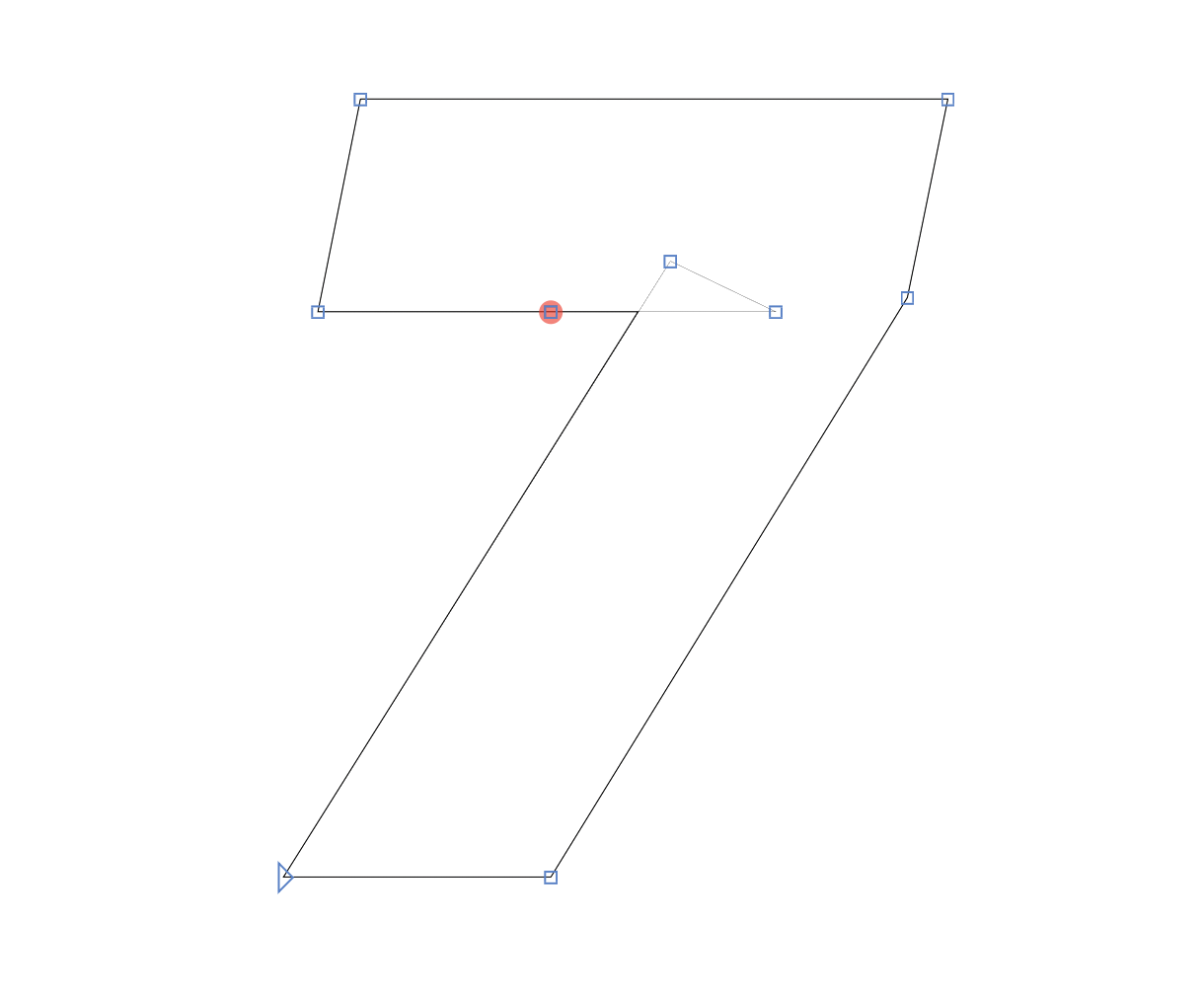
This would be the output:
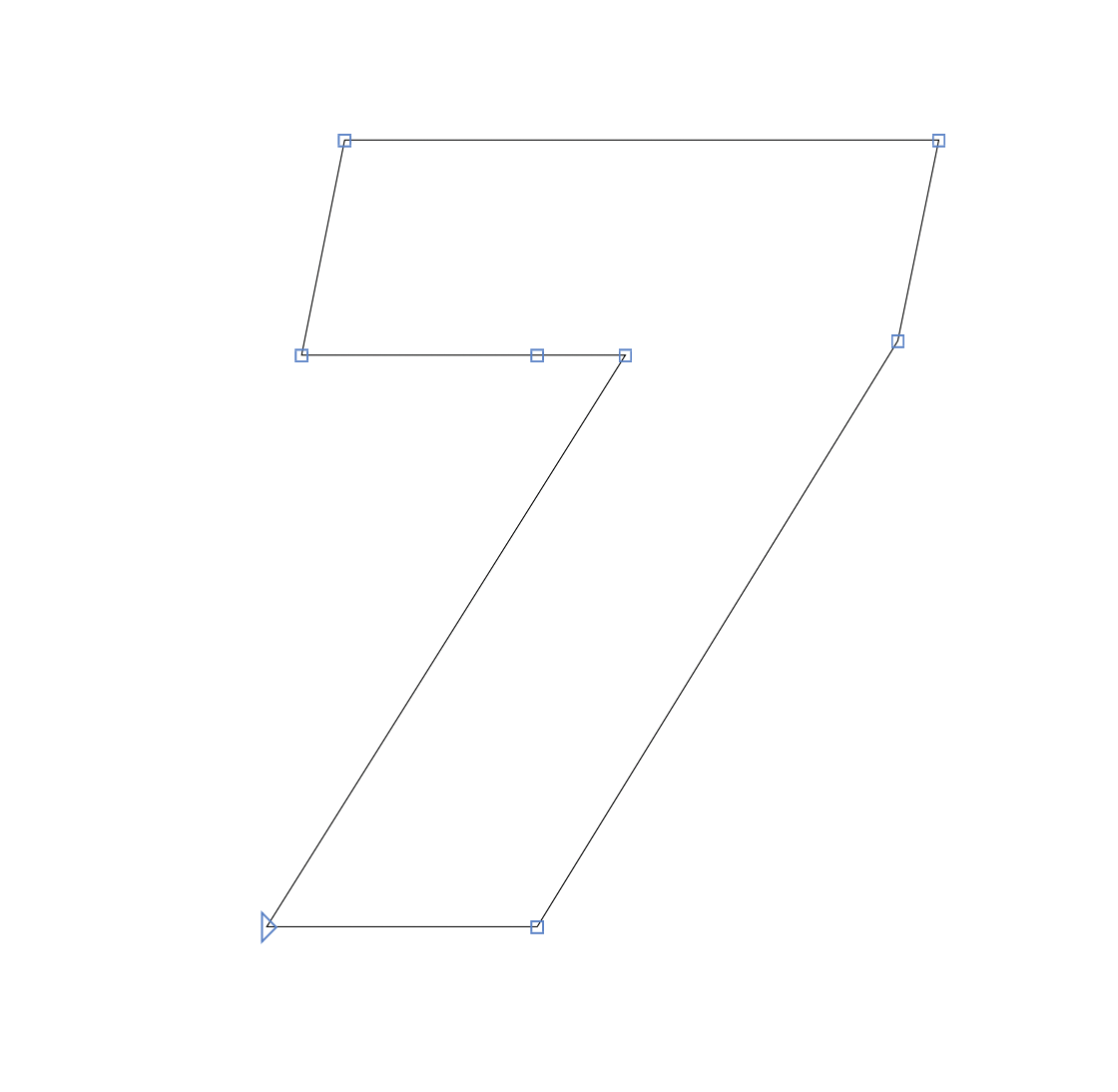
But I want this:
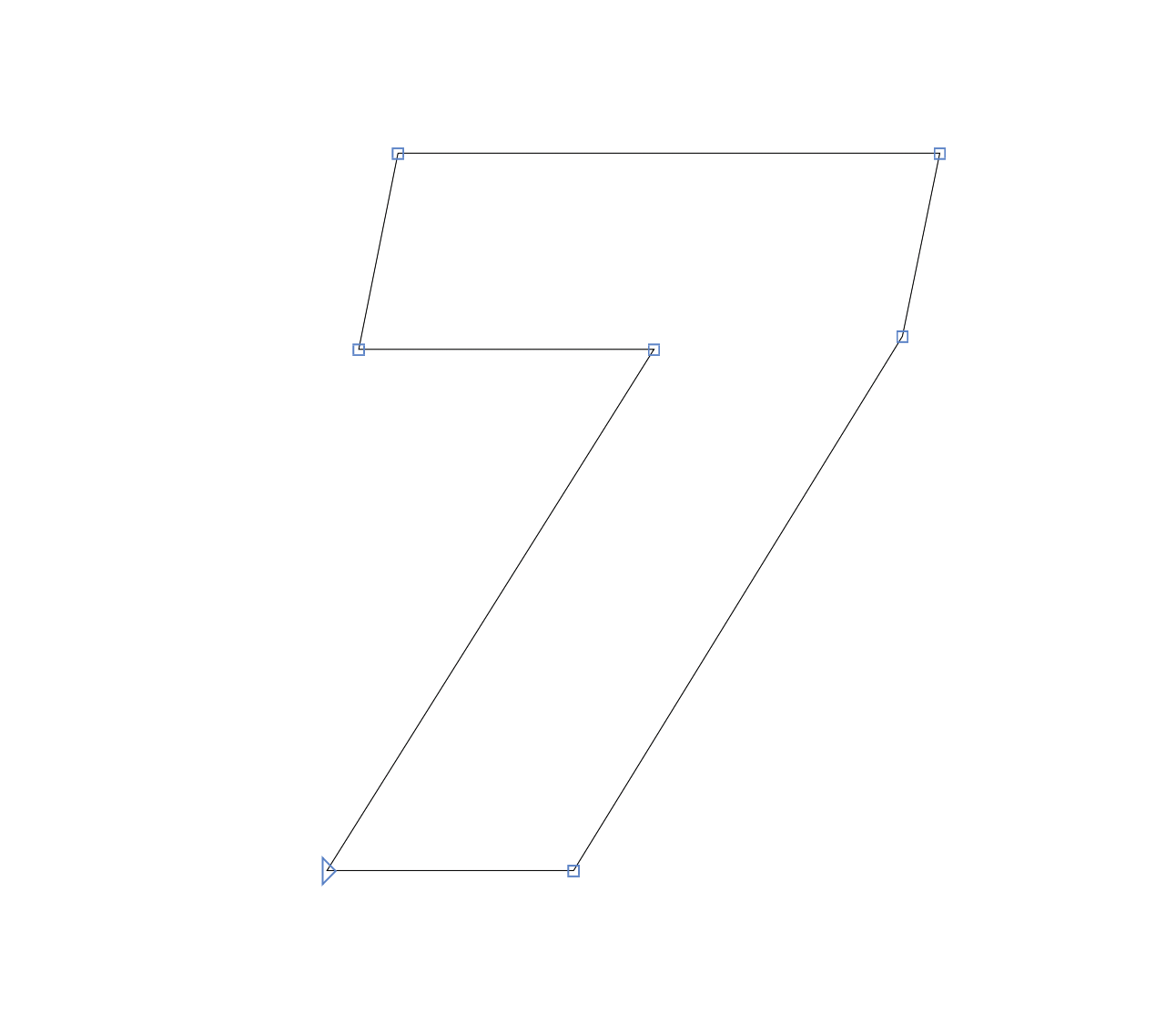
Is it possible to remove overlap twice or Remove Overlap & tidy up paths on export ?
As far as I can see, if you export that with the “Remove Overlap” checkbox set in the export dialog, it should look like the second image.
I believe you mean the third image (the one with no point on the horizontal path).
But no, I’m getting this result with “Remove Overlap” checkbox set:
Just 1 point is removed on the export.
In previous versions, the unnecessary nodes were removed automatically in the Edit window. I liked that very much, I mean who needs these on a straight path? So something changed in the latest versions of Glyphs, if I did not dream this? 
you didn’t dream it, it changed some time ago.
Can you send me the file?
02 Italic_RemoveOverlap.glyphs.zip (18.7 KB)
The workaround I found to clean these point is applying a Filter or a PreFilter: RemoveOverlap; include:seven, sevensmallcomb.