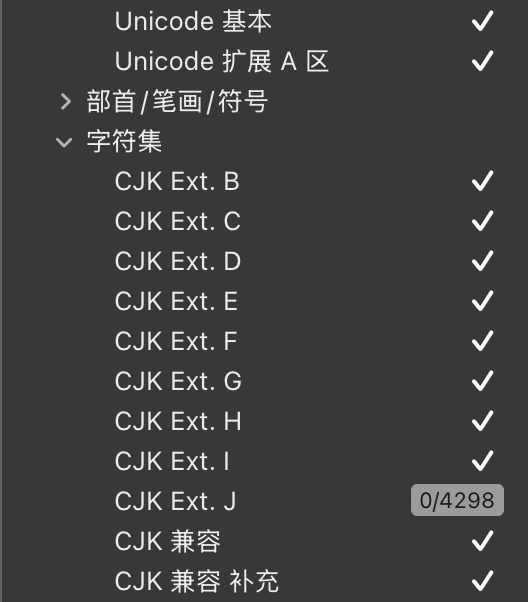
Does Glyphs offer a Unicode blocks view in the same way that FontStudio on the Mac does? That is a view of a selected Unicode block with all assigned and unassigned slots just like the Unicode documentation itself? That’s the way of working I have been used to for the last decades.
Glyphs offers character sets (which you can find in the sidebar on the right), which don’t necessarily correspond to Unicode blocks. You can also create your own list filters with the corresponding character set.
My UnicodeInfo plugin can filter by Unicode block. You can install it via the plugin manager.
1 Like
What advantage do you see looking at unicode blocks?
First of all, thanks for the tips regarding the use of list filters and plugins - much appreciated!
Secondly, the advantages: 1) the FontStudio grid view allows me easily to compare my set of glyphs against the Delta charts of the Unicode standard to check and double check if all new additions are there. 2) I am using this block view sometimes to aid in preparing proposals to Unicode to visually indicate what should go where. 3) For educational purposes: I am documenting certain fonts using these tables with additional annotations (see here for example: https://www.academia.edu/122411939/RomanCyrillic_Std_v_11_Online_Documentation). 4) I am using screenshots for such tables in presentations (like this one: (PDF) Unicode 13-14 & Slavic Philology ).
Thus, for me, this Unicode block view mode is the “natural” way of looking at fonts, once the Unicode Standard is documented in the same way. Sadly, FontLab 8 didn’t fully continue this view from FontStudio, but at least one can choose Unicode blocks for viewing - but without the unencoded slots.
Hm, I was searching for Unicode blocks view today, to fill empty PUA slots.
(The Plugin UnicodeInfo.glyphsPlugin has caused a crash.)
Strongly recommend adding a native Unicode blocks view.
Chinese characters have many glyphs that are similar or even identical, and the CJK block of Chinese characters has many branches, so it is often necessary to confirm which branch a character belongs to.
That is valuable feedback. Could you illustrate with some screenshots how you would use this?
1 Like
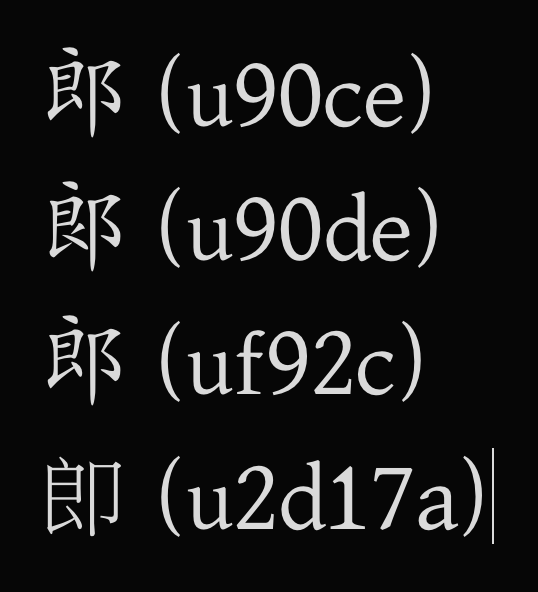
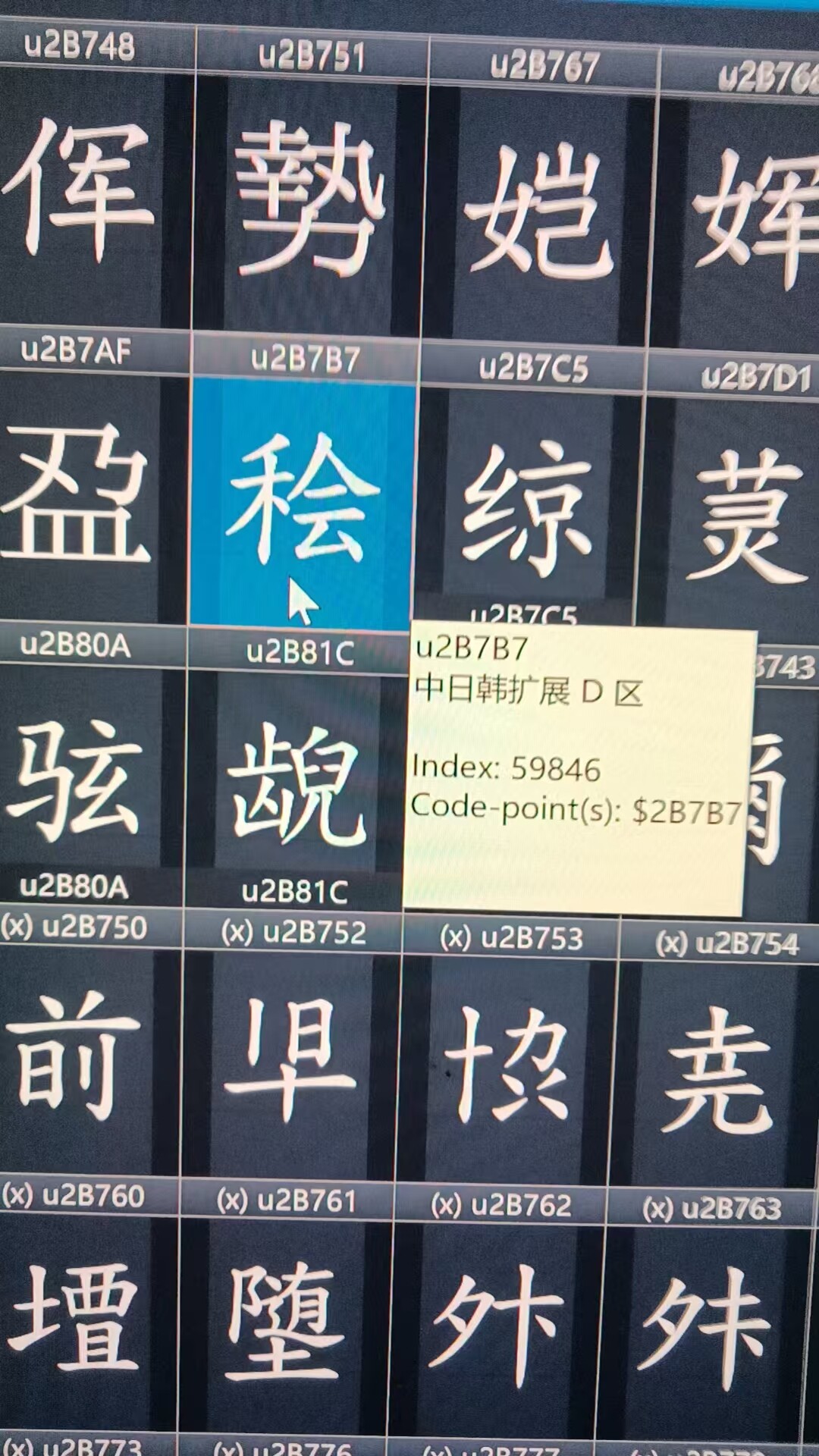
This is just an example. There are many more like this. Chinese fonts allow the same glyph to have different encodings, and also allow different glyphs to use the same encoding. This makes it difficult to determine the encoding just from the glyph; you must confirm the encoding. Confirming encoding is a frequent operation in Chinese font design. The website below can let you experience the complexity of Chinese character glyphs and encoding. You can search for a few glyphs at random to see:
The native Unicode blocks view lets users choose which blocks they frequently need to display.
Chinese font design often requires overall operations on certain blocks. CJK has more than ten blocks.
I meant how the block view should look like. I understand the you need to check related glyphs (to compare paths and design). But how does showing a whole Unicode block will help with this?
The native Unicode blocks view provides complete blocks, allowing users to choose which blocks they frequently need to display.
Chinese font design often requires overall operations on certain blocks. CJK has more than ten blocks. For example, next year Unicode will add a new CJK block with thousands of characters, making operations on entire blocks very frequent, such as import, export, copy, paste, etc.
Sometimes you might want to point the mouse at a character to know which block it belongs to, sometimes you might need to display all characters from a specific block to find the character you need, etc. Only the native Unicode blocks view can do these things.
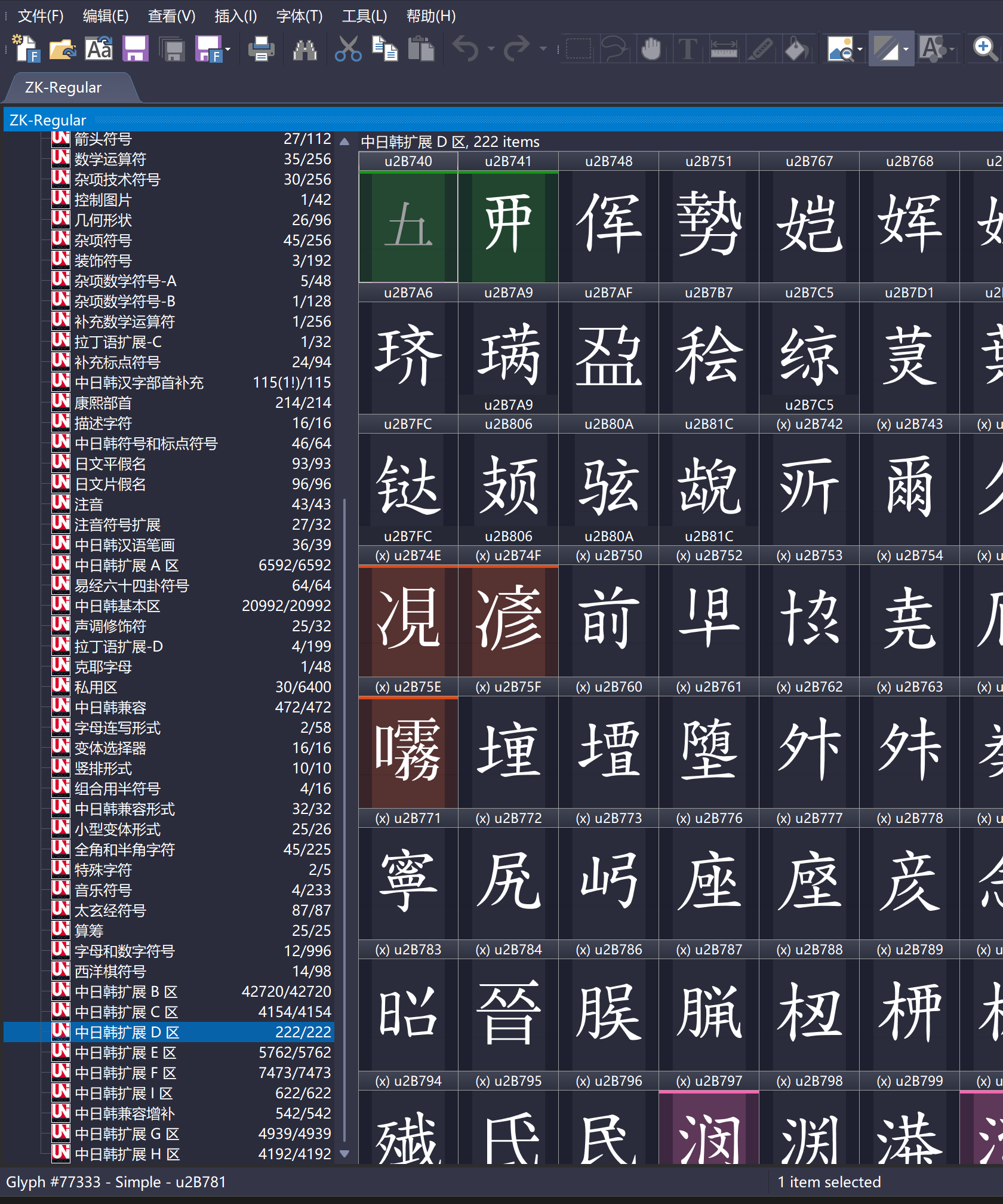
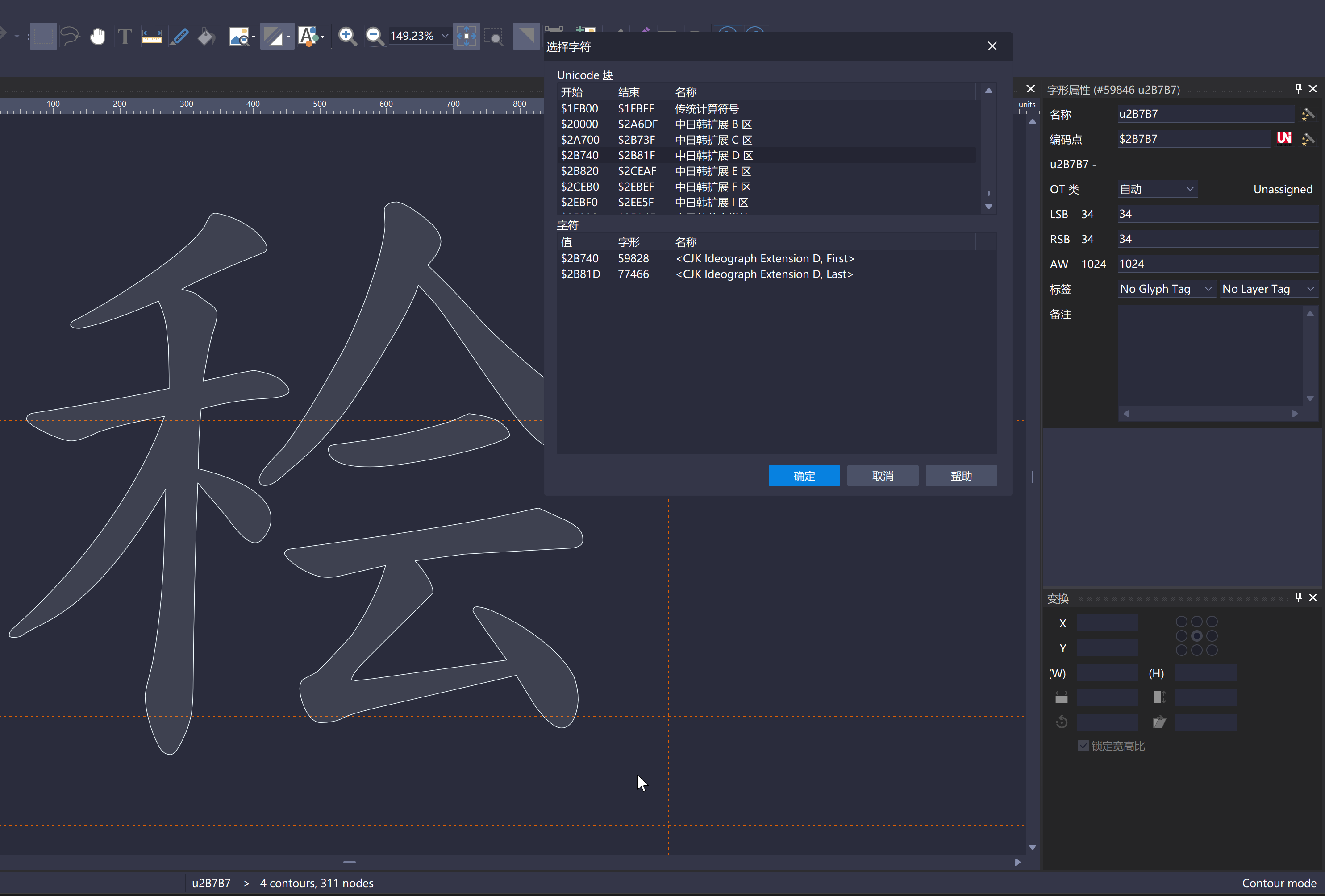
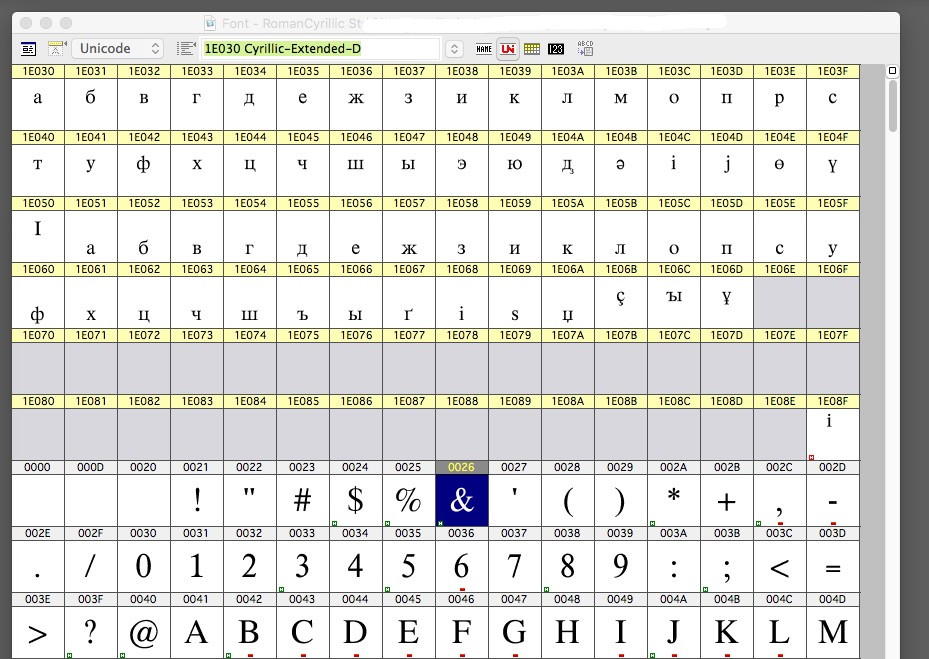
This is the block view from FontStudio: characters of a selected block are shown at the top of the font window with cell headers given a temporary colour to distinguish them from the rest. Empty slots have a grey background. Positions reserved by Unicode are hatched - not visible in this example. The rest of the font is also visible so you can scroll up and down at will and copy and paste characters.
Standard would be 16 cells wide, arranged horizontally - not vertically, as in the UC docs. Clear grid view with separating lines, just as in the UC docs. Other features of a selected character are displayed in a separate small palette window.
For selecting an encoding block there is a drop-down menu (at the top), and the name of the current block is clearly displayed. For the header above each cell there is a choice (drop down menu) of what to display: Unicode number, name, decimal no., width, hex, octal, ANSI etc. For me, UC no., name and width are the ones I regularly use. (Width to easily detect combining characters.)
Maybe something like this that would fit the overall design of Glyphs 
I was searching for Unicode blocks view today, to fill empty PUA slots.
The PUA is huge, don’t try to fill it all with the UnicodeInfo plugin. I tried it and wasn’t patient enough to see if the operation ever finishes.
In this font, the standard PUA area (max 6400 glyphs) is already quite full, and I wanted to search for empty slots, to add another symbol, not with a plugin but visually.
I do not know if your plugin can help with that. After installing Unicode Info I get a message “The plugin was installed successfully” and immediately another message “Installation failed”. I restart Glyphs and get a message that I should reinstall Unicode Info, like a never ending loop. It looks like the necessary jkUnicode module is not installing.
Try removing from the Library/Application Support/Glyphs 3 folder:
Plugins/UnicodeInfo.glyphsPluginRepositories/jkUnicodeRepositories/UnicodeInfo.glyphsPluginScripts/jkUnicode
and install the plugin via Plugin Manager again.
That brought me in a different but longer loop.
After also removing 2 Vanilla Folders within Library/Application Support/Glyphs 3 the installation went well. Now the plugin works and indeed I do not want to fill the whole PUA block.
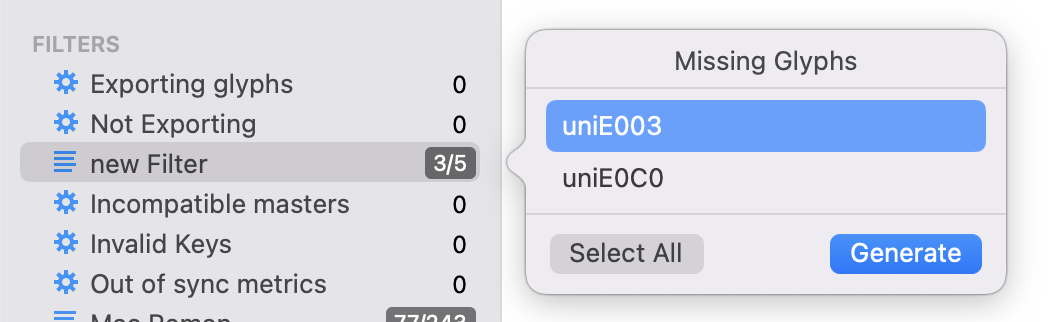
You could make a list filter with all the PUA codes (the actual characters, one per line) that you are interested in. If you happen to have a custom glyphData.xml that gives assigns names to those PUA values (I recommend that if you need to work with a specific set).
Then you get the missing glyphs in the popup:
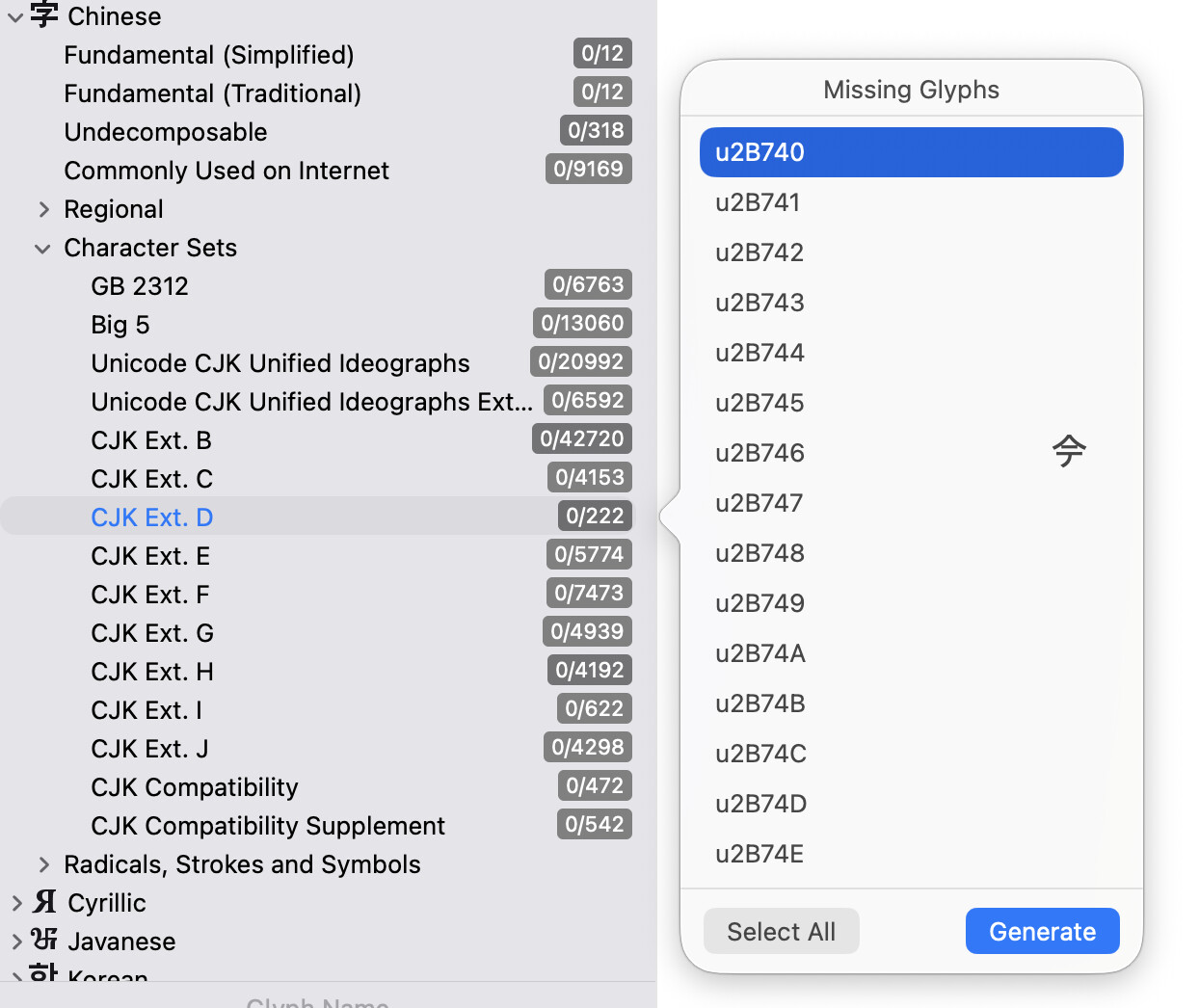
You can add your own lists to the sidebar. I have prepared the CJK Unicode ranges.
GroupsCJKBlocks.plist (1.2 KB)
Put this file into ~/Library/Application Support/Glyphs 3/Info/
This will put the some entries in Chinese > Character Sets. (for now there will be two “Character Sets” entries, I fixed that).
This will look like this:
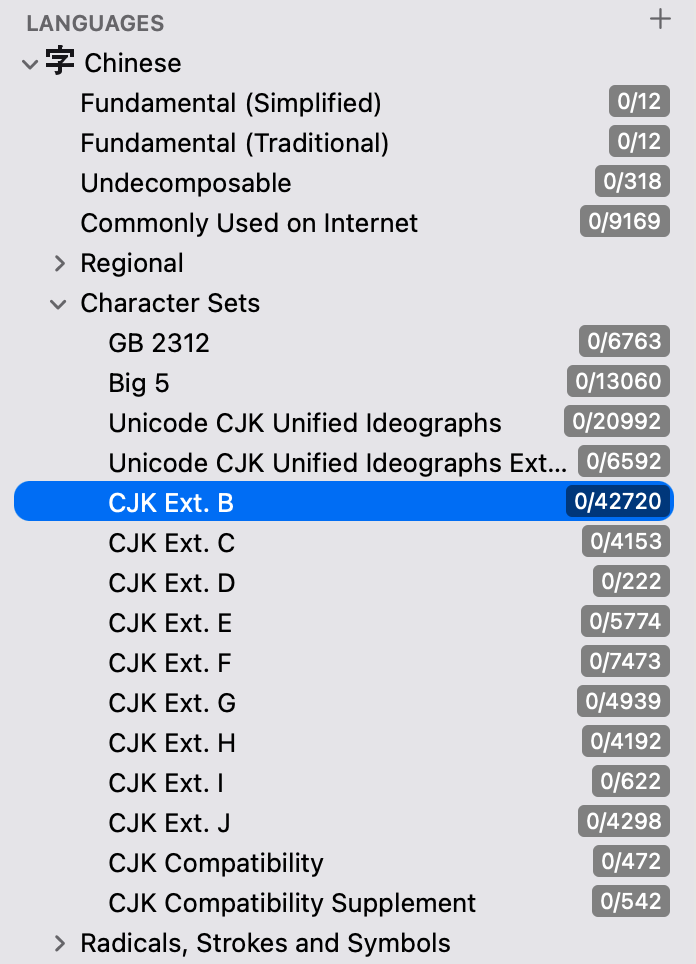
That way you can filter for all glyphs from each block. Or add missing ones by right-clicking that line:
1 Like