There will be proper documentation too, but please, we are a small team, and do not have the resources for keeping the documentation always up to date with code that is still very much in flux. For now we focus on more videos.
You could access the YouTube video? That should be accessible without login.
Just heard from the organizers that YouTube took down the video because of copyrighted music playing in the background. We are finding a solution. As soon as I can, I’ll try to find the time to re-record just the presentation.
Particles are for constructing instances. An example:
You have a weight axis, and a width axis. Instead of defining every possible instance in a list (linear), you can simply say that you have 9 steps on the weight axis (giving a name to each), and then 3 steps on the width axis (also assigning a name to each).
Glyphs then uses this to construct all possible instances in this 9×3 matrix for you.
This becomes especially valuable when you have many possible “axes” (including script subsets, that kind of stuff), which would otherwise only multiply your existing instances.
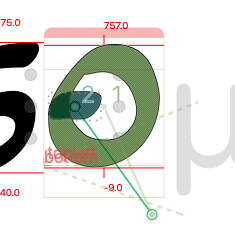
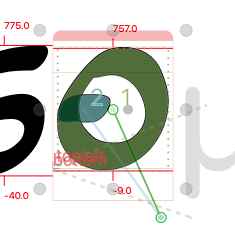
The gray outline seems a preview of what the curve would have been, right? That makes it feeling confusing and visually distracting.
The reason I ask if the Star node is supposed to reposition as handles readjust is that then converting back to a green node would be intuitive and and a quick click.
At the end of the video I manually move the star node holding down Option and click Return to convert it back to a green node.
updated to the latest version, no improvement. command-spacebar and command-option-spacebar sometimes work, but most often don’t. Sometimes after a few seconds it suddenly zooms, but not to the spot I clicked.
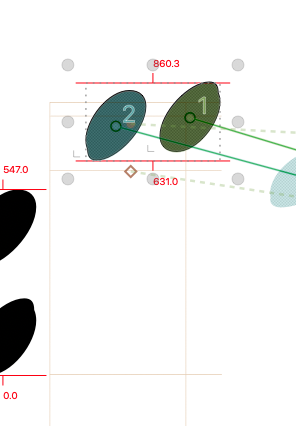
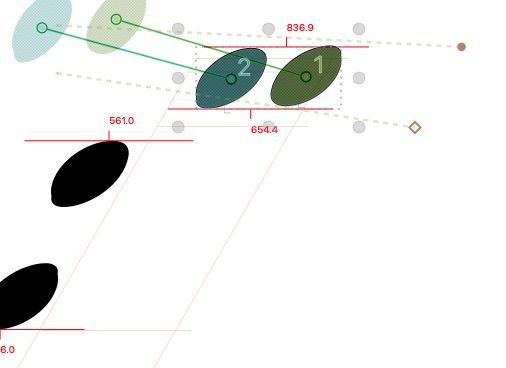
The black outline is always your result, what you will get in the exported font, just like you know it already from the overlap removal preview. The grey outline is the uncorrected one you get if you disable the star node again. The grey node is a preview of the resulting position of the on-curve.
You can Opt-move the green point yourself, but you do not have to.
I understand. From a user perspective, seeing the uncorrected gray outline feels unnecessary and, like I said, visually distracting. Should at least be able to toggle it on/off.
Is it not possible for the Star node to automatically update, as the handles are adjusted, to be aligned at the grey nodes at the resulting on-curve position?
Seeing the Star node move while adjusting the handles will also give a better visually understanding of what is happening.
The way to disable the gray outline is to move the star closer to the gray node. Without the gray line, it would be difficult to know where the star belongs to.
As I know we can now open glyphs in multiple “tabs” only.
It would be great if Glyphs supported multiple editing windows, not just multiple tabs.
For example, I could open two or more glyphs side by side, or even open the same glyph in different masters and edit them simultaneously. This would be great for editing multi-axis fonts and especially useful on dual-monitor or large-screen setups.
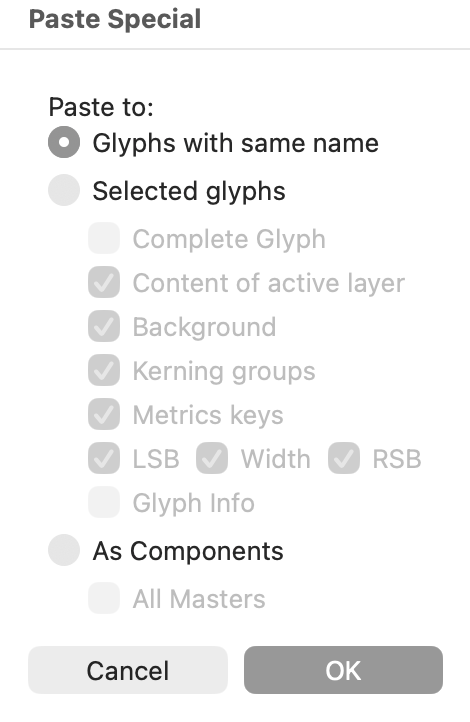
I found a bug: when I use Paste Special and select the first option (Glyphs with the same name), the buttons are grayed out. Glyphs 3 let me select what to paste. Thanks for fixing this.
 In the meantime, something quick. What’s the difference between particles and instances? (conceptually)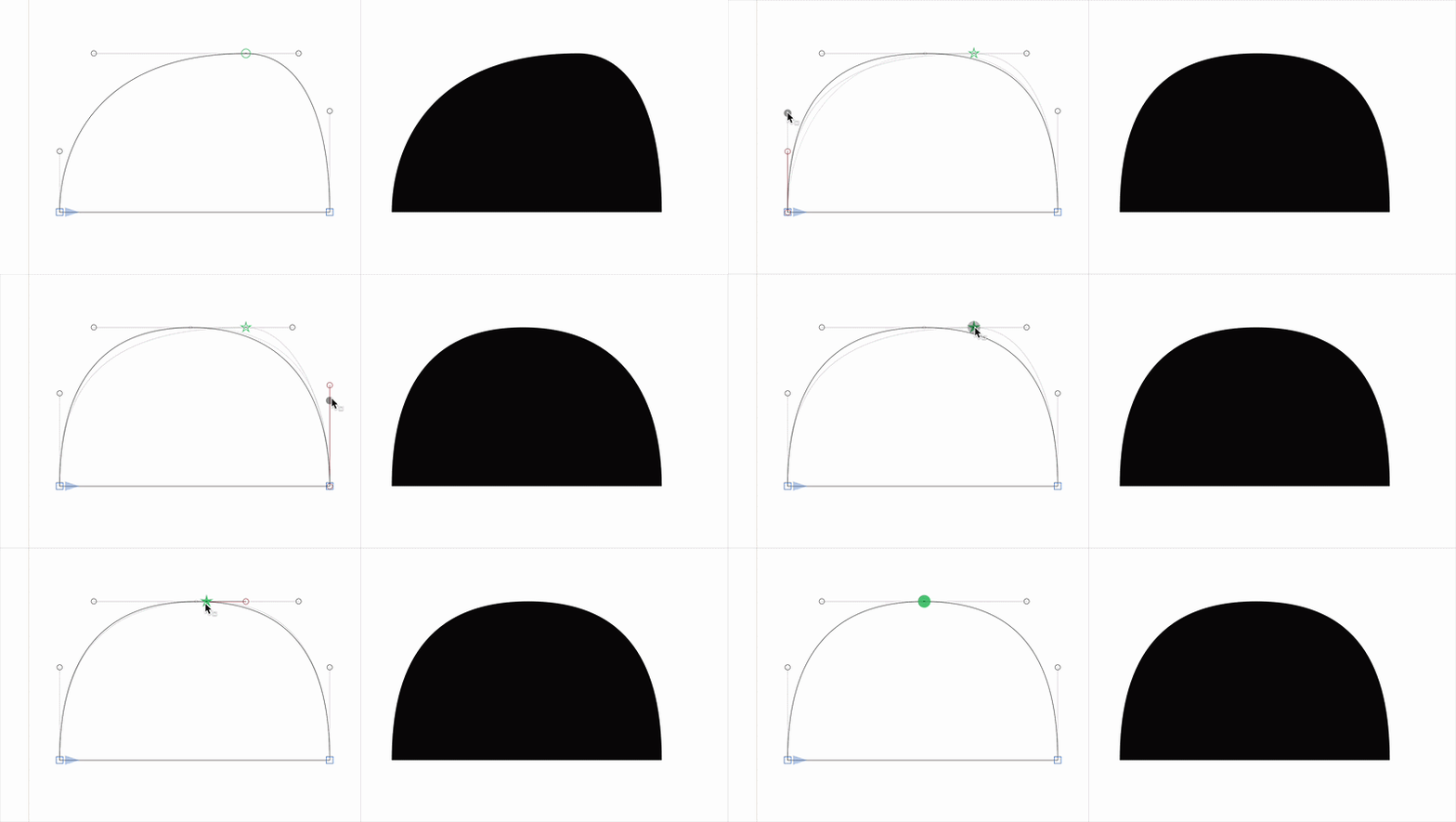
 command-spacebar and command-option-spacebar sometimes work, but most often don’t. Sometimes after a few seconds it suddenly zooms, but not to the spot I clicked.